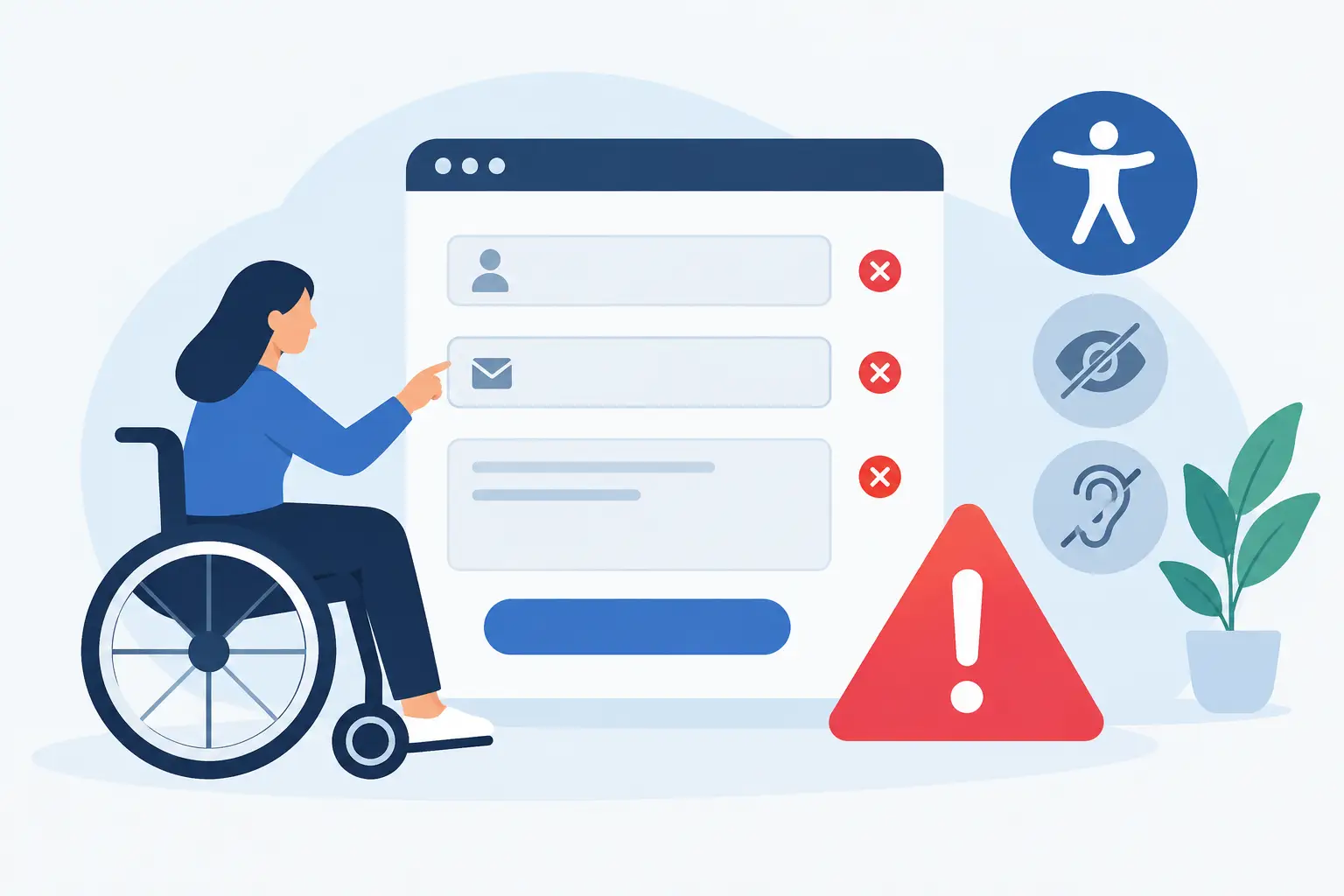
Why WordPress Forms Fail Accessibility Tests
A form can look polished, submit correctly, and still prevent someone from requesting a service, paying a bill, registering for an event, or contacting your organization. That is why WordPress forms fail accessibility checks so often: visual success and functional success are not the same as usable, standards-conforming interaction.
For organizations subject to ADA expectations, Section 508 requirements, or WCAG-based accessibility policies, forms deserve special attention. They are where visitors must provide information, correct mistakes, make selections, and complete transactions. A missed label or broken focus state is not a minor design flaw when it blocks a constituent, student, customer, or applicant from finishing a necessary task.
Why WordPress Forms Fail Accessibility
WordPress form accessibility is rarely controlled by one setting. A typical form may involve a form plugin, a theme stylesheet, page builder markup, anti-spam tool, payment integration, custom JavaScript, and confirmation page. Each layer can introduce an issue, and a form that was accessible in a default installation can become inaccessible after styling or customization.
The most common failures are not obscure technical edge cases. They are basic failures in programmatic information, keyboard operation, error handling, and status communication. WCAG 2.1 and WCAG 2.2 require more than fields that appear to have instructions nearby. Assistive technology must be able to identify what each control does, what information is required, and what happened after the user takes action.
Placeholder text is treated as a label
A placeholder such as “Email address” disappears as soon as a user starts typing. It is not a reliable replacement for a visible `
Every meaningful input needs an accessible name that is correctly associated with the field. Visible labels are usually the strongest option because they support more people, including users who magnify the screen or use speech input. If a design requires a visually hidden label, the label must remain available to assistive technology and be correctly connected to its control.
Required fields and format instructions are unclear
A red asterisk alone does not tell every user that a field is required. Color cannot carry the full meaning. Likewise, a date field that expects a specific format needs instructions that are available before submission, not only after the form rejects the value.
Use clear text such as “Required” and provide format examples where they are needed. The field should also expose required status programmatically. This is particularly relevant to applications, payment forms, appointment scheduling, and government service portals, where a single unclear field can stop a visitor from completing a time-sensitive process.
Validation errors do not identify the problem
Many WordPress forms display a generic message at the top: “Please correct the errors below.” That message is only useful if the user can locate each error, understand what is wrong, and correct it without losing entered data.
An accessible error pattern identifies the specific field, explains the correction, and connects the error message to that field in code. For example, “Enter a valid email address” is actionable. “Invalid input” is not. Error messages should not rely only on red borders, icons, or movement on the page.
The timing matters too. Validation triggered while a user is still typing can be distracting, especially for fields with complex formatting. In other cases, validation after focus leaves a field is appropriate. The correct approach depends on the task, but users must receive understandable feedback at a predictable point in the interaction.
Focus order breaks after submission or modal behavior
Keyboard users move through a form with the Tab key, Shift+Tab, Enter, and Space. If custom scripts alter the page after submission, focus can be lost, jump unexpectedly, or remain behind a modal window. This can leave a user unaware that an error summary, confirmation message, or required-field warning has appeared.
After an unsuccessful submission, focus should generally move to an error summary or the first invalid field. After a successful submission, the confirmation should be communicated clearly. If a form opens a modal dialog, keyboard focus must enter the dialog, remain within it until it is closed, and return to the trigger when appropriate.
These issues frequently appear after adding pop-up forms, multi-step forms, CAPTCHA tools, or page-builder interactions. A mouse test will not reliably reveal them. Teams need to test the complete journey using only a keyboard.
Custom controls are not real controls
Themes and form builders sometimes replace native checkboxes, radio buttons, dropdowns, and buttons with styled `
Native HTML controls provide dependable behavior, states, and keyboard support. Custom components can be made accessible, but they require careful implementation of roles, names, states, keyboard interactions, and focus management. That trade-off is often not justified for ordinary form fields. When native controls meet the design need, they are the lower-risk choice.
CAPTCHA and time limits create barriers
Anti-spam protection is necessary, but some CAPTCHA implementations are difficult or impossible for users with visual, motor, cognitive, or hearing disabilities. A form can also fail users when it imposes a short, unannounced time limit or silently expires a session.
Review the full anti-spam and timeout experience, including audio alternatives, keyboard access, error recovery, and whether a user can extend a time limit. Do not assume that a third-party service is accessible simply because it is widely used. Its configuration and placement inside the form still matter.
The WordPress Workflow Problem
Accessibility defects persist because form ownership is often fragmented. A marketing team creates the form, a developer styles it, an administrator embeds it on a page, and a different team changes the confirmation email or payment setting. No one sees the entire interaction as a compliance-critical workflow.
Publishing practices can compound the problem. Editors may add a new form shortcode without checking instructions, required fields, heading context, or linked documents. An agency may deploy a site-wide style change that reduces focus visibility across every form. A plugin update may change markup or behavior without a manual regression test.
This is why periodic spot checks are not enough for complex WordPress environments. Accessibility needs to be part of the publishing and maintenance process, with clear accountability for remediation. Automated auditing can identify many detectable issues, including missing labels, invalid form markup, empty buttons, and color-related concerns. Manual testing remains necessary for keyboard behavior, sensible error messaging, and screen reader announcements.
How to Remediate Form Failures Systematically
Start by inventorying every form, not only the contact page. Include newsletter signups, donation and payment forms, search fields, login screens, quote requests, job applications, event registration, support tickets, pop-ups, and forms embedded in third-party widgets. Also test forms on mobile layouts, where labels, instructions, and error messages may change position or become hidden.
Then assess each form against a repeatable set of questions:
- Does every input have a clear visible label and programmatic accessible name?
- Can every control be reached and operated with a keyboard alone?
- Are required fields, instructions, errors, and success messages understandable without color or visual position?
- Does focus move predictably after errors, submissions, modal dialogs, and multi-step transitions?
- Can users review, correct, and submit information without unnecessary time pressure?
Document the exact page, form, field, code location, and corrective action. Vague tickets such as “fix accessibility on contact form” lead to incomplete remediation. A useful report identifies whether the issue is in the form configuration, page content, theme CSS, template code, or a third-party integration.
For broader coverage, WP ADA Compliance Check can scan WordPress content and site components for many detectable accessibility issues, provide remediation guidance, and support a more controlled publishing workflow. It should be part of an accessibility process, not a substitute for testing the user experience of critical transactions.
Build Form Accessibility Into Change Control
The most effective fix is operational: treat a modified form as a change that requires accessibility review before publication. Test the form after plugin updates, theme changes, new conditional fields, payment integration changes, and anti-spam configuration updates. Keep a record of who tested it, what was tested, and which WCAG criteria were reviewed.
For high-impact forms, involve people who use keyboards and screen readers in testing when possible. Automated results can reveal code-level patterns at scale, while real interaction testing exposes the practical barriers that determine whether a visitor can complete the task.
A compliant-looking form is not the goal. The goal is a form that lets every visitor understand the request, enter information, recover from mistakes, and finish the transaction with confidence.
Subscribe
Subscribe to receive daily Web Accessibility - Did you know? articles in your inbox.