
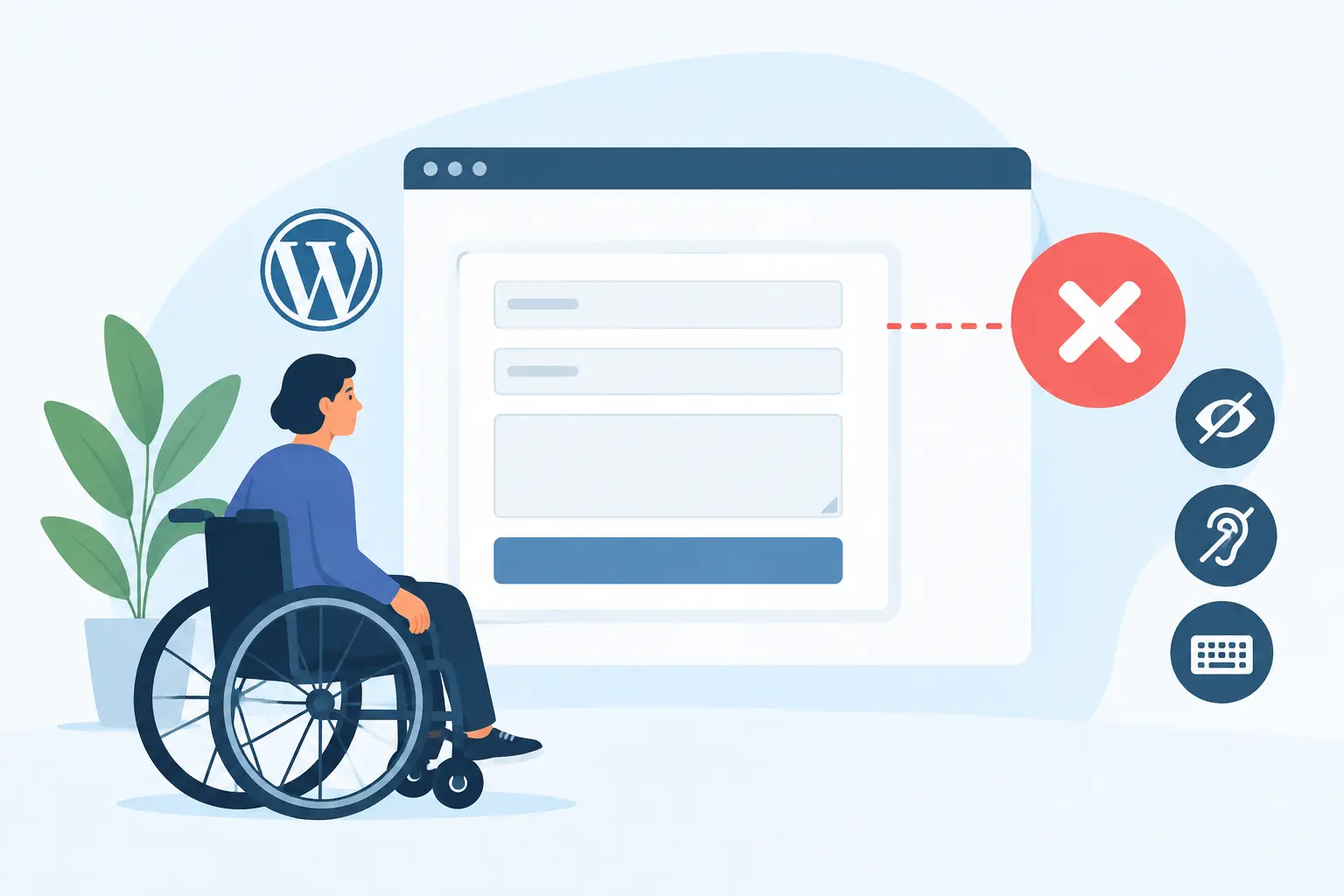
How to Identify Inaccessible Forms on WordPress
A form can look complete in a browser, submit successfully, and still prevent a prospective student, resident, customer, or patient from contacting your organization. That is the practical risk behind learning how to identify inaccessible forms. Forms are where users request services, pay bills, apply for jobs, register for programs, and report problems. When a form fails accessibility requirements, the impact is immediate and the compliance exposure is hard to dismiss.
For WordPress site owners, the challenge is that forms are rarely contained in one place. They may appear in page-builder modules, donation tools, contact form plugins, checkout pages, popup tools, custom themes, and embedded third-party services. A reliable review must check the user experience, the underlying markup, and the publishing workflow that allowed the issue to reach production.
Why inaccessible forms create outsized compliance risk
A missing alt attribute on a decorative image may be a contained issue. An inaccessible form can block the entire purpose of a page. A keyboard-only user may be unable to select an option. A screen reader user may hear “edit text” without knowing whether the field requests an email address, phone number, or account number. A person with low vision may receive an error message that is visible only through a color change.
These are not merely usability defects. They can implicate core WCAG requirements, including 1.3.1 Info and Relationships, 1.3.5 Identify Input Purpose, 2.1.1 Keyboard, 3.3.1 Error Identification, 3.3.2 Labels or Instructions, and 4.1.2 Name, Role, Value. Public-sector organizations also need to consider Section 508 obligations, while commercial organizations must manage ADA-related legal risk.
The right standard depends on your organization, contracts, jurisdiction, and audience. In many cases, WCAG 2.1 AA remains the baseline referenced in policies and settlements, while WCAG 2.2 AA provides additional current guidance. The operational goal is consistent: every person must be able to understand, complete, correct, and submit the form without relying on a mouse, color perception, or visual interpretation alone.
How to identify inaccessible forms before users report them
Start with an inventory. List every form path that supports a meaningful task, not just the contact page. Include newsletter subscriptions, account registration, appointment requests, event registration, e-commerce checkout, quote requests, searchable directories, login and password reset screens, surveys, uploads, payment forms, and embedded forms delivered by vendors.
Then test each form in the state a real user will encounter. A form that appears accessible before submission may reveal inaccessible validation messages, confirmation dialogs, CAPTCHA challenges, or payment fields later in the workflow. Test desktop and mobile layouts where possible, because responsive styling can alter focus order and hide instructions.
Check whether every field has a programmatic label
Visible placeholder text is not a reliable replacement for a label. Placeholder text disappears when a user enters information, often has insufficient contrast, and may not be announced consistently as a field name. Each input, select menu, textarea, checkbox group, and radio-button group needs an accessible name that clearly communicates its purpose.
A label should be connected programmatically to its control. For standard HTML, that commonly means a `label` element associated with an input through matching `for` and `id` values, or a label that wraps the input. Custom controls may require appropriate ARIA labeling, but ARIA should not be used to compensate for avoidable markup problems.
Check for duplicate field IDs as well. WordPress templates and page builders can generate repeated form components, especially in modals or reusable blocks. Duplicate IDs can cause a label or error message to connect to the wrong control.
Complete the form using only a keyboard
Put the mouse aside and use Tab, Shift+Tab, Enter, Spacebar, and arrow keys. You should be able to reach every interactive component, see where focus is located, operate menus and checkboxes, trigger help text, dismiss dialogs, and submit the form.
Look for a visible focus indicator at every step. Many themes remove browser focus outlines for visual reasons without providing an equivalent replacement. This leaves keyboard users unable to tell which field or button is active. Also watch for focus traps: a popup, date picker, address autocomplete tool, or error dialog may capture focus and make it impossible to reach the next control or return to the page.
Keyboard testing exposes issues that automated checks may not fully interpret, including illogical tab order. If focus jumps from the first field to a footer link, then back to the second field, the form is not usable even if every element technically receives focus.
Test errors, required fields, and instructions
Submit the form with empty required fields and deliberately enter invalid data. The form should identify the specific problem in text, explain how to fix it when needed, and associate the message with the relevant field. A red border by itself is not sufficient. Neither is a generic message such as “Please correct the errors below” when users must hunt through the form to find them.
Error handling should also move or manage focus intelligently. If submission fails, users need a clear path to the error summary or the first invalid field. For screen reader users, dynamic validation messages often need to be announced through properly implemented live regions or other accessible patterns. The correct implementation varies by form technology, so testing the actual behavior matters more than adding ARIA attributes indiscriminately.
Required status must be communicated in more than one way. An asterisk can be useful when accompanied by instructions explaining its meaning, but the field must also expose its required state programmatically. Review date formats, password rules, character limits, and data-entry expectations before the user submits. Clear instructions reduce errors for everyone and support WCAG 3.3.2.
Inspect field groups and custom controls
Related choices need context. A series of radio buttons for preferred contact method should have a group label, usually built with `fieldset` and `legend`. The same applies to groups of checkboxes, such as service selections or consent options. Without group context, a screen reader user may hear choices without understanding the question they answer.
Custom dropdowns, calendars, sliders, file upload interfaces, and address lookups deserve extra scrutiny. They often look polished while failing basic keyboard and screen reader interaction. Ask whether the control announces its current value, available state, instructions, and expanded or collapsed status. Confirm that users can change a selection without a pointer device.
CAPTCHA is another common barrier. If a form requires visual image recognition, drag-and-drop interaction, or a time-limited puzzle without an accessible alternative, users may be locked out. A spam-control decision always involves trade-offs, but fraud prevention does not remove the obligation to provide an accessible path to submit a legitimate request.
Use automated scanning to find form issues at scale
Manual testing is essential, but it does not scale well across a large WordPress environment. An automated accessibility audit can identify recurring defects such as missing labels, empty buttons, invalid ARIA usage, missing form instructions, contrast failures, and structural problems across published pages, templates, custom post types, widgets, menus, and linked documents.
Automation has limits. A scanner cannot reliably determine whether the wording of an instruction is understandable, whether focus order is logical in every interaction, or whether a third-party checkout works correctly with a screen reader. It can, however, find code-level failures quickly, prioritize remediation, and prevent known issues from becoming a permanent backlog.
WP ADA Compliance Check supports this workflow by scanning WordPress content and site components against WCAG 2.1, WCAG 2.2, and Section 508 checks, then reporting the affected code and editing path. For organizations managing many forms across departments or client sites, that specificity matters. A report that identifies the exact location of a missing label is more useful than a high-level accessibility score with no remediation route.
Build form accessibility into publishing controls
The most efficient remediation process does not begin after a complaint or audit finding. It begins before a page is published. Create a form review requirement for new campaigns, landing pages, and template changes. Agencies should apply the same rule to client handoff: test the form workflow, not just the visual design.
A practical review should confirm four outcomes: every control has a clear accessible name; all functionality works by keyboard; errors are specific and programmatically communicated; and related instructions or choices are exposed in a meaningful structure. Where custom development is involved, require developers to validate the rendered form rather than relying only on component documentation.
Publishing controls and scheduled scans are especially useful when content managers can add forms without developer review. They reduce the chance that a new plugin setting, embed, or page-builder update introduces an avoidable barrier. They also create a more defensible compliance process by showing that accessibility is monitored as an ongoing operational responsibility.
A form is accessible only when a person can complete the task it represents. Treat each form as a service channel, test it with the seriousness of a payment or application workflow, and address failures before the next user has to abandon it.
Subscribe
Subscribe to receive daily Web Accessibility - Did you know? articles in your inbox.
