
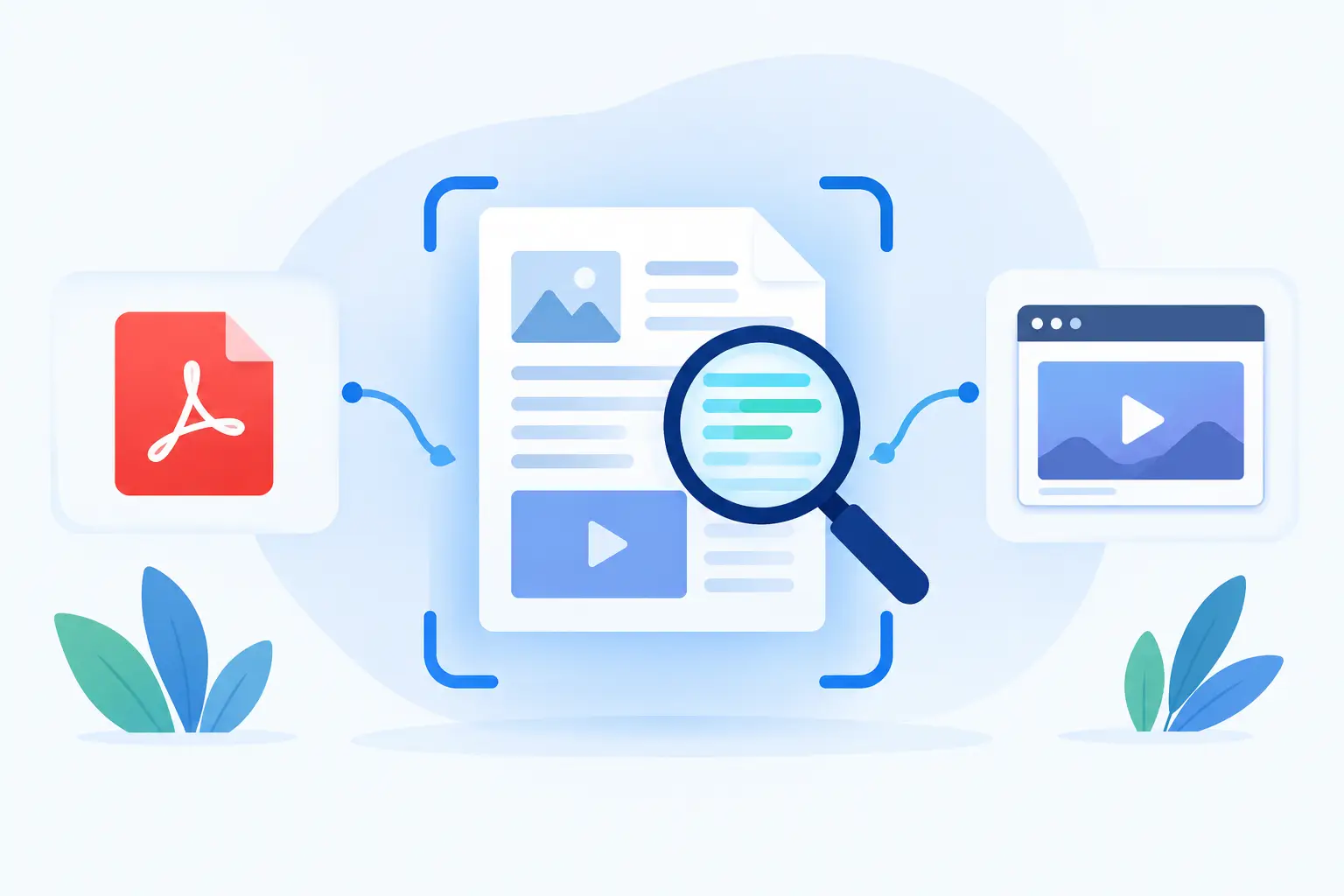
Deep Media Scanning for PDFs and Iframe Embeds
A WordPress page can pass a quick visual review and still create serious accessibility exposure through a document download, an old image attachment, or a third-party frame embedded halfway down the page. Deep media scanning audits your media library, PDF documents, and iframe embeds because these assets are part of the visitor experience and must be included in a meaningful accessibility review.
For organizations subject to ADA obligations, Section 508 requirements, or internal WCAG policies, scanning visible page copy alone is not enough. Accessibility failures often persist in the content that teams publish once and then forget: legacy PDFs, uploaded images reused across dozens of pages, videos supplied by outside platforms, and embedded forms or maps.
Why page-level checks leave compliance gaps
Traditional page scans are useful, but they typically evaluate the rendered page and the markup immediately available in that view. That approach can identify many problems, such as missing form labels, heading-order errors, insufficient color contrast, and image alternative-text issues. It may not, however, give administrators a complete inventory of the assets connected to their WordPress environment.
This distinction matters when one inaccessible asset appears in many places. A PDF containing untagged tables or image-only content can be linked from department pages, resource centers, and archived posts. A media-library image with inadequate alternative text may be inserted repeatedly by editors who assume the original upload was already reviewed. A page-level audit can flag each instance it encounters, but a deep scan helps identify the source asset and its broader impact.
For agencies and enterprise teams, this is also an operational issue. Remediation work is more efficient when staff can identify whether they are fixing a one-page exception or correcting a shared component that affects an entire site.
Deep media scanning for your WordPress library
The WordPress media library is frequently treated as storage rather than published content. From an accessibility standpoint, that is a mistake. Every image, document, audio file, and video attachment can become part of a public-facing workflow with a few clicks.
A useful scan should evaluate media assets in the context of the standards and the way WordPress manages them. For images, the question is not simply whether an alt attribute exists. The alternative text must communicate the image’s purpose when the image is informative, while decorative images should be handled so they do not create noise for screen reader users. File names, captions, linked-image behavior, and surrounding context can also affect the quality of the experience.
The same principle applies to downloadable assets. A link labeled “Click here” does not adequately identify a PDF about financial aid, a public meeting agenda, or a benefits application. The user needs clear link purpose, and the document itself must be usable after it opens.
Deep scanning helps teams move from isolated fixes to media governance. It supports a repeatable process: identify problem assets, remediate or replace them, document ownership, and establish publishing expectations for future uploads. That process is particularly valuable for schools, municipalities, healthcare organizations, and businesses with years of accumulated documents.
Media-library remediation requires context
Automation can efficiently surface missing attributes and recurring patterns, but not every decision can be automated. Whether an image needs descriptive alternative text depends on its function. Whether a PDF should be repaired, replaced with accessible HTML, or removed depends on its importance, complexity, and ongoing use.
For example, a short policy document may be better presented as an accessible WordPress page with a downloadable accessible PDF as an optional supplement. A complex annual report may require a properly tagged PDF because its layout, tables, and print-ready format are necessary. The correct choice depends on audience needs and organizational requirements, not a one-size-fits-all rule.
PDF documents need their own accessibility review
PDF accessibility is often underestimated because the document may look correct on screen. Visual appearance does not confirm that a PDF can be navigated with a keyboard, understood by a screen reader, or reflowed for a user who needs larger text.
Common failures include missing document titles, absent heading structure, untagged or incorrectly tagged content, tables without defined headers, images without text alternatives, and poor reading order. Scanned documents present another recurring issue. A scan that contains only an image of text is not accessible simply because the words are visible to sighted users.
A deep media audit should identify PDFs hosted in the WordPress environment and make them part of the remediation queue. Priority should be based on public importance and usage. Start with documents needed to access services, complete transactions, understand rights or policies, apply for programs, register for events, or obtain legally required information. Archived materials still deserve review when they remain publicly available, although the remediation strategy may differ based on the document’s role and applicable requirements.
The practical goal is not to treat PDFs as a separate compliance project that never ends. It is to include them in the same publishing controls, reporting process, and ownership model used for web pages.
Iframe embeds create third-party risk
Iframe embeds are often added to WordPress pages to display content managed elsewhere. Common examples include maps, videos, scheduling tools, donation forms, social feeds, appointment systems, document viewers, and customer portals. These integrations can add needed functionality, but they can also introduce accessibility barriers outside your theme and editor controls.
An iframe requires a meaningful title so assistive technology users can identify its purpose. “Iframe” or “Embedded content” provides little value. A title such as “Appointment scheduling calendar” gives users a clear expectation before they enter the framed experience.
Titles are only the first check. The embedded service must also be evaluated for keyboard access, visible focus indicators, form labels, error identification, color contrast, accessible dialogs, and usable screen reader behavior. If a required public task occurs inside an inaccessible embedded form, the fact that the vendor hosts the form does not remove the impact on your visitors or the risk to your organization.
There are trade-offs. Some third-party tools offer important features but limited customization. In those cases, teams should evaluate vendor accessibility documentation, test the actual implementation, request remediation commitments, and provide an equally effective accessible path where necessary. Replacing the integration may be the right answer when the iframe controls a critical transaction and the vendor cannot support accessibility requirements.
Build deep scanning into your publishing workflow
The strongest accessibility programs do not rely on an annual scramble before a deadline or after a complaint. They establish recurring checks that catch defects when content is created and before it spreads across the site.
A practical workflow begins with an initial full-site baseline. Scan published pages, posts, custom post types, menus, widgets, theme output, linked content, media files, PDFs, and embeds. Then assign remediation based on severity, user impact, and the number of locations affected. A missing alternative text field on a single nonessential image is different from an inaccessible PDF application used by hundreds of visitors.
After the baseline, use ongoing scans and publishing controls to prevent repeat issues. Content editors should know when to write useful alternative text, when to use headings instead of styled paragraphs, and when a document or external embed requires additional review. Developers should review theme templates and custom integrations. Compliance managers need reports that show progress, unresolved high-risk issues, and the exact locations requiring action.
WP ADA Compliance Check supports this workflow by scanning WordPress content beyond basic page checks, including media, PDFs, linked pages, custom post types, theme files, and other site components. Detailed findings help teams locate the affected content and act on remediation guidance without turning every correction into a manual code investigation.
Accessibility coverage should follow the user journey
The right scope for deep scanning depends on what your site asks people to do. A marketing site with a handful of images has different exposure than a government department publishing years of public records or a university distributing forms, course materials, and event information. Still, the principle remains consistent: if a visitor can encounter the content through your website, it belongs in your accessibility program.
Treat your media library, documents, and embedded services as active parts of the website, not background assets. That shift makes accessibility work more accurate, more manageable, and far less likely to leave a critical barrier hidden behind an otherwise compliant page.
Subscribe
Subscribe to receive daily Web Accessibility - Did you know? articles in your inbox.
