
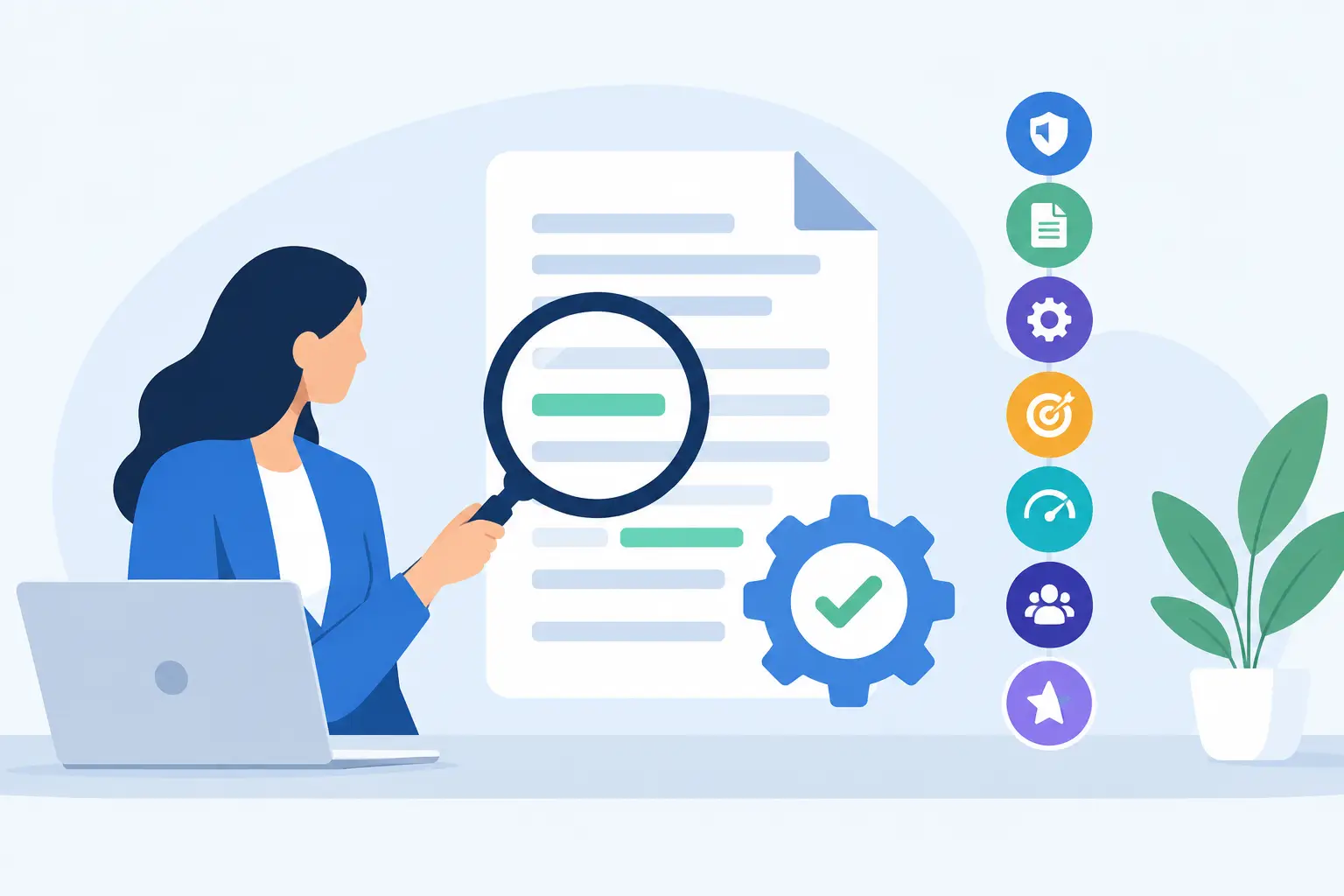
Document Remediation Tool Review: 7 Criteria
A document remediation tool review should begin with the documents your organization already publishes, not a vendor feature list. A government department may have years of meeting agendas and forms. A university may publish course materials across dozens of departments. A business may add brochures, invoices, policies, and product sheets every week. The right solution must help you identify inaccessible files, remediate the issues that can be addressed automatically, and establish controls that prevent the same problems from returning.
Document accessibility is not a cosmetic requirement. An untagged PDF, an image-only form, or a document with an incorrect reading order can prevent a screen reader user from obtaining information or completing a task independently. For organizations subject to ADA obligations, Section 508 requirements, or contractual accessibility standards, that is both a service failure and a compliance risk.
What a Document Remediation Tool Must Actually Do
The phrase “document remediation” can describe several different products and services. Some tools evaluate PDF files for accessibility errors. Some provide editing environments for adding tags, headings, table structure, document language, bookmarks, and alternative text. Others focus on monitoring websites for linked documents that may need review. Managed remediation services may combine software with manual expert work.
That distinction matters because no single automated scanner can guarantee that a complex document is accessible. Software can identify missing structure, suspicious reading order, untagged images, inaccessible form fields, and other detectable conditions. It cannot reliably decide whether a chart description communicates the necessary information, whether a table structure matches the visual and logical relationships, or whether the reading sequence makes sense in context.
A practical buying decision usually requires two capabilities: document-level remediation for the files themselves, and website-level monitoring that finds documents where your audience encounters them. If your documents live on a WordPress site, treating these as separate workflows creates blind spots. A remediated PDF does little good if an inaccessible replacement is uploaded next month without review.
1. Standards Coverage Must Be Specific
Ask which standards the tool evaluates and how it maps findings to those requirements. Broad claims about being “ADA compliant” are not enough. The ADA does not provide a checkbox list for a PDF, and accessibility evaluations commonly rely on WCAG success criteria, Section 508 requirements, and organization-specific policies.
For web teams, WCAG 2.1 and WCAG 2.2 coverage is particularly relevant because documents are often part of a web-based service or information path. The tool should explain whether a finding relates to programmatic structure, text alternatives, keyboard operation, contrast, labels, language, or other criteria. A vague score may be useful for reporting trends, but it does not tell a remediation team what to fix.
Also verify the file types in scope. PDF is the most common concern, but many organizations distribute Word documents, PowerPoint files, spreadsheets, and downloadable forms. A solution that only checks final PDFs may fit a publication archive. It may be less effective for a content team that needs to correct source files before export.
2. Detection Is Only Valuable When It Leads to a Fix
A useful tool does more than flag that a document has errors. It provides enough detail for a person to locate the problem, understand why it matters, and apply the correct correction. That means clear issue names, affected page or object references, standards guidance, severity information, and practical remediation instructions.
For example, “missing tags” is not a complete remediation path. A reviewer needs to know whether the file lacks a tag tree entirely, whether headings have been flattened into paragraphs, or whether lists and tables have lost their semantic structure. Each condition has a different fix and a different effect on the user experience.
Consider the experience level of the people doing the work. A specialized accessibility team may need detailed technical diagnostics. A communications manager may need plain-language direction for creating an accessible source document before publishing a new PDF. The strongest workflow gives both groups usable information without forcing every issue through a developer or outside consultant.
3. Review Reading Order, Tables, Forms, and Images Carefully
These are the areas where automated results require human judgment. A document can pass many machine checks while remaining difficult or impossible to use with assistive technology.
Reading order must follow the intended narrative, especially in newsletters, reports with sidebars, multi-column layouts, and forms. Tables need header cells and logical relationships, not merely rows and columns that look correct on screen. Images need appropriate text alternatives when they communicate information, while decorative images should not create unnecessary screen reader noise. Forms require meaningful labels, usable keyboard behavior, and instructions that do not depend on color or visual position alone.
A tool should help surface these conditions, but your review process should reserve time for manual validation. For high-impact files such as applications, enrollment forms, public notices, emergency information, and payment documents, keyboard and screen reader testing should be part of the release process.
4. Inventory and Ongoing Monitoring Are Not Optional
Most compliance failures are operational, not theoretical. Organizations remediate a group of PDFs, then new inaccessible documents appear through routine publishing. Agencies face the same problem across client sites, often with different editors, themes, and approval practices.
Your solution should provide an inventory of documents across the site and make it possible to prioritize them by public importance, traffic, file type, or issue severity. It should identify where each document is linked, because a file buried in an internal archive may warrant a different response than a required public form linked from the homepage.
This is where a WordPress-native accessibility platform adds operational value. WP ADA Compliance Check can scan WordPress content, theme files, menus, widgets, linked pages, and PDFs while providing issue reporting and remediation guidance within the publishing environment. It is not a substitute for dedicated PDF editing when a file needs structural repair, but it helps teams identify document-related risk as part of a broader WCAG and Section 508 workflow.
5. Evaluate Workflow Controls Before You Buy
The best remediation tool can still fail if it sits outside the way people publish. Look for assignment options, exportable reports, historical records, and a clear method for confirming that an issue has been resolved. Agencies may need white-labeled reports and multi-site visibility. Government and education teams may need evidence for audits, procurement reviews, or internal compliance reporting.
Publishing controls deserve special attention. If the organization can prevent known accessibility errors from being published, it reduces cleanup work and makes accountability clear. The appropriate level of restriction depends on the organization. A small business may prefer warnings that guide a busy editor. A public institution may require approval gates for high-risk content.
The tool should also fit your escalation path. Some issues can be corrected by content authors, such as adding meaningful alternative text or using true headings. Others require a designer, developer, document specialist, or accessibility professional. Reporting should make those handoffs efficient rather than sending every issue into a generic backlog.
6. Separate Automation Claims From Compliance Claims
Automation is valuable because it finds repeatable problems at scale. It can catch missing document language, empty links, missing alternative text fields, and other detectable patterns faster than a manual review. It can also support consistent documentation of issues and progress.
However, automatic remediation has limits. A tool cannot safely invent an accurate description for a complex chart, determine the intent of a form, or reconstruct a logical document hierarchy from every poorly exported PDF. Be cautious of any product that promises complete compliance through a single scan or overlay. Accessibility conformance depends on the finished user experience, not a vendor dashboard.
A credible provider explains which issues can be corrected automatically, which require editor action, and which require specialist review. That clarity is a strength, not a weakness. It lets compliance managers budget time realistically and prioritize the work that carries the greatest user and legal impact.
7. Test With Your Real Documents and Team
A trial should include representative files, not only a clean sample PDF. Use an old scanned document, a complex table, a form, a presentation-derived PDF, and a recently published policy or report. Compare the findings with what an experienced reviewer sees. Then ask the people who will own the workflow to complete a correction and document the result.
Measure the time required to discover the issue, assign it, fix it, validate it, and prevent recurrence. A lower-priced tool that produces unclear findings can cost more in staff time than a platform with stronger reporting and publishing integration. Conversely, a sophisticated remediation environment may be unnecessary for a small site with a limited, well-managed document library.
Choose a document remediation process that gives your organization visibility, clear ownership, and an honest path from detection to verified accessibility. That is how document compliance becomes a repeatable publishing practice instead of a one-time response to risk.
Subscribe
Subscribe to receive daily Web Accessibility - Did you know? articles in your inbox.
