
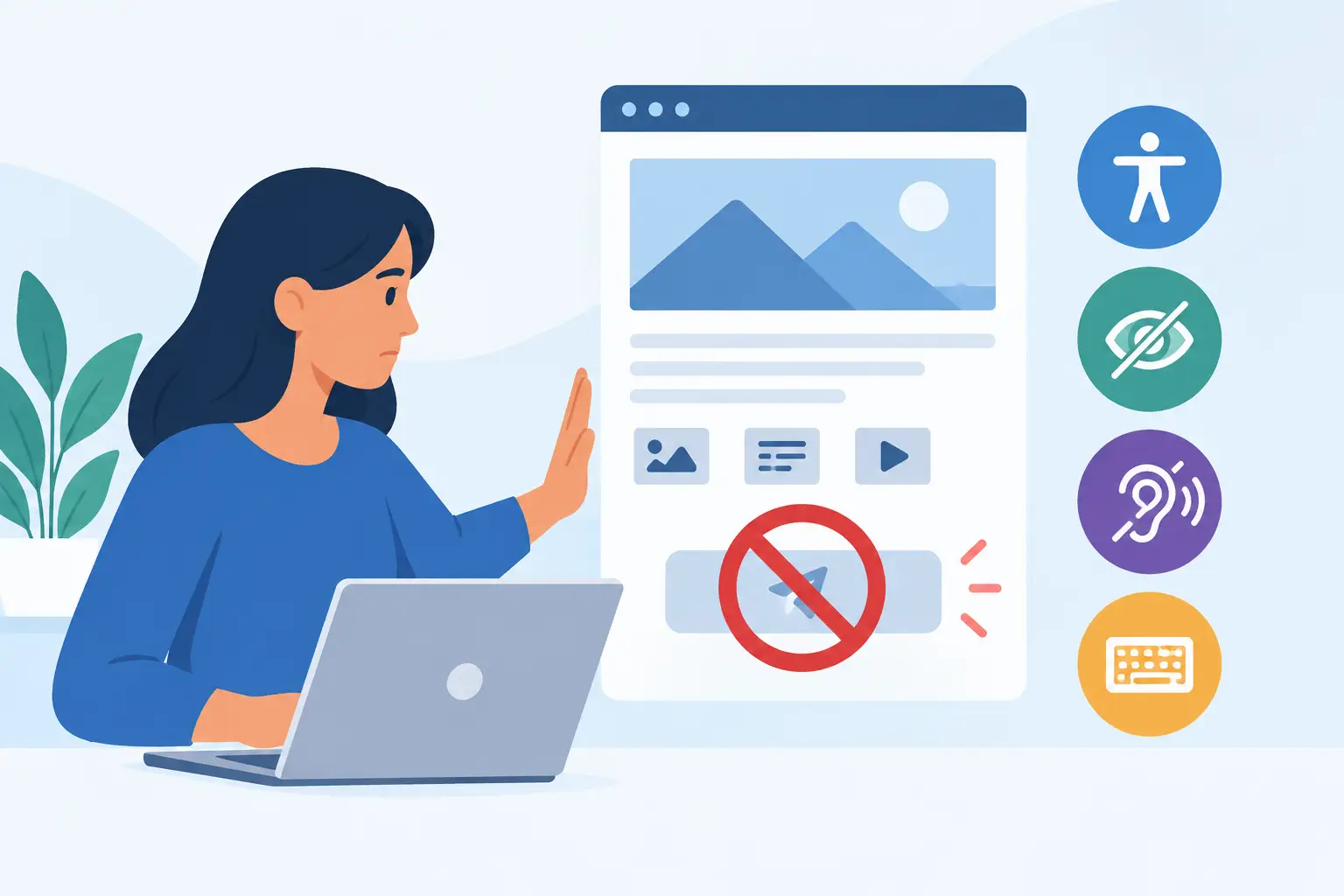
Stop Users From Publishing Content With Accessibility Issues
A publishing workflow can undermine months of accessibility remediation in a single afternoon. An editor uploads a scanned PDF, adds a promotional image without alternative text, pastes a color-coded table into a post, and presses Publish. The page is live, the accessibility risk is real, and the team may not find the problem until a user reports it or an audit identifies it.
To stop users from publishing content with accessibility issues, accessibility must become a required part of the WordPress publishing process, not a task reserved for periodic cleanup. The objective is not to slow content teams down. It is to give them clear, standards-based feedback before inaccessible material reaches the public.
Why post-publication audits are not enough
Site-wide audits remain necessary. They identify inherited theme problems, older posts, widgets, menus, custom post types, linked documents, and issues outside an editor’s immediate view. But an audit performed after publication is a detection process, not a preventive control.
For organizations subject to ADA obligations, Section 508 requirements, or internal WCAG policies, that distinction matters. A public page can exclude visitors as soon as it goes live. It can also be indexed, shared, included in an email campaign, or cited in a public record before anyone has an opportunity to remediate it.
The volume of publishing makes this harder. Marketing teams may publish campaign pages daily. Higher education departments often manage decentralized content contributors. Government offices may publish notices, meeting materials, forms, and PDFs under strict timelines. Agencies face the additional challenge of enforcing consistent requirements across client sites.
A reliable workflow addresses accessibility at the point of creation. It checks content before publication, identifies the issue in terms the author can act on, and escalates exceptions to someone with the authority and knowledge to review them.
Set a publishing standard before you add a blocker
A publishing control only works when users understand what it is enforcing. Start with a practical content accessibility standard aligned to your organization’s WCAG conformance target. For most WordPress teams, this should translate technical criteria into author-level requirements.
Authors need to know that meaningful images require appropriate alternative text, headings must follow a logical hierarchy, links need descriptive text, tables require proper headers, and videos need captions when they include synchronized audio. They also need instructions for accessible documents. A PDF uploaded to a media library can create a significant compliance gap even when the page linking to it appears accessible.
Do not treat every warning as equal. Some errors should prevent publication because they create a clear, high-impact barrier or violate a non-negotiable policy. Missing alt text on an informative image, an empty form label, or a document that fails your required review process may belong in this category. Other findings may need a warning and editorial judgment. A decorative image, for example, may properly use empty alternative text when it adds no information.
This is where teams often overcorrect. Blocking every possible advisory item can teach authors to dismiss the checker or find workarounds. The better approach is to define which failures block publishing, which require acknowledgment, and which go to a specialist review queue.
Use WordPress publishing controls for accessibility issues
The most effective way to stop users from publishing content with accessibility issues is to put automated accessibility validation directly beside the Publish button. The author should see the finding while the content is still open, editable, and connected to its purpose.
A WordPress-native checker can scan a draft and evaluate the rendered content against configured accessibility rules. When it identifies a failure, the workflow should tell the user what is wrong, where it appears, and what action is required. “Missing alternative text” is helpful. “Missing alternative text on the image in the third content block” is far more actionable.
Publishing controls should support your actual permission model. A content author may be blocked from publishing but allowed to save a draft. An accessibility coordinator may have permission to review the issue and approve an exception. A site administrator may need visibility across all departments, post types, and contributors. These roles create accountability without turning every editor into a WCAG specialist.
WP ADA Compliance Check supports this type of workflow by identifying accessibility errors within WordPress and providing publishing controls that can prevent content with unresolved issues from being published. Used correctly, the control makes accessibility a standard editorial gate rather than an after-the-fact repair project.
Make the remediation path specific
A blocker without remediation guidance creates friction. A useful publishing control should identify the relevant rule, the affected element or code location, and the likely correction. It should also distinguish between content the author can fix in the editor and problems that require a developer, designer, or document specialist.
For example, an editor can usually correct vague link text, add a heading, or supply image alt text. They may not be able to fix insufficient contrast caused by a theme style, a keyboard trap in a third-party form, or an inaccessible PDF generated by another department. The workflow must make that handoff visible rather than allowing the issue to disappear into a generic support request.
Build an exception process that does not become a loophole
There are legitimate cases where a user cannot resolve an issue before a required deadline. A public safety notice, emergency update, or time-sensitive service change may need to be posted while an attached document is being remediated. A rigid system with no exception path can encourage staff to publish outside the approved workflow.
Allow exceptions, but make them accountable. The person requesting the exception should record why it is needed, who approved it, what temporary accommodation is available, and when the issue will be corrected. A short deadline matters. An exception with no owner or due date is simply an accepted accessibility defect.
For documents, a temporary alternative might include accessible HTML content that communicates the same essential information while the PDF is remediated. The exact accommodation depends on the content and audience. Simply adding a phone number or a generic statement that assistance is available is rarely an adequate substitute for accessible digital information.
Check more than posts and pages
Blocking inaccessible blog posts is valuable, but it is not full website coverage. WordPress accessibility issues can originate in custom post types, reusable blocks, page-builder modules, navigation menus, sidebar widgets, embedded media, forms, theme templates, and documents. A publishing rule aimed only at standard posts may leave the highest-risk content untouched.
Map every place your organization can publish public-facing material. For each content type, identify the responsible team, the appropriate automated checks, the blocker threshold, and the remediation owner. Agencies should repeat this exercise for each client because editorial permissions, plugins, templates, and legal requirements can differ significantly.
This broader coverage is especially important for template-driven sites. If an inaccessible component is used in hundreds of pages, individual authors cannot solve the underlying problem. They need a clear way to report it, while technical staff need site-wide scan results that show the scope of the defect.
Measure whether the control is working
A blocked-publish feature is not a set-it-and-forget-it compliance measure. Review its results monthly or quarterly. Look for recurring error types, departments with high exception rates, and issues that authors repeatedly cannot resolve. Those patterns reveal where training, template improvements, or development work will have the greatest impact.
Track both prevention and remediation. Prevention metrics can include the number of issues caught before publication and the percentage of drafts resolved by the original author. Remediation metrics can include the age of approved exceptions, the number of unresolved PDF issues, and recurring failures in shared components.
If the same missing heading or link-text problem appears every week, the answer may not be another reminder to editors. It may be a flawed block pattern, an unclear form field, or a content template that encourages inaccessible formatting. Controls work best when their data improves the publishing system itself.
Give authors a workable final check
Before a team enables strict publishing restrictions, provide a short process that authors can follow without reading WCAG documentation for every post. Their check should cover meaningful image descriptions, clear headings, descriptive links, accessible tables and media, and attached documents that have been reviewed or replaced with accessible HTML.
Automation is essential, but it does not replace judgment. A checker can detect many missing attributes and structural failures. It cannot always determine whether alt text accurately communicates an image’s purpose, whether link text makes sense in context, or whether a complex chart has an equivalent explanation. Content ownership still matters.
The strongest accessibility program prevents avoidable errors, routes complex defects to the right people, and keeps an auditable record of what was found and fixed. When the Publish button enforces that discipline, accessibility becomes part of ordinary WordPress governance instead of a risk discovered after visitors have already been excluded.
Subscribe
Subscribe to receive daily Web Accessibility - Did you know? articles in your inbox.
