
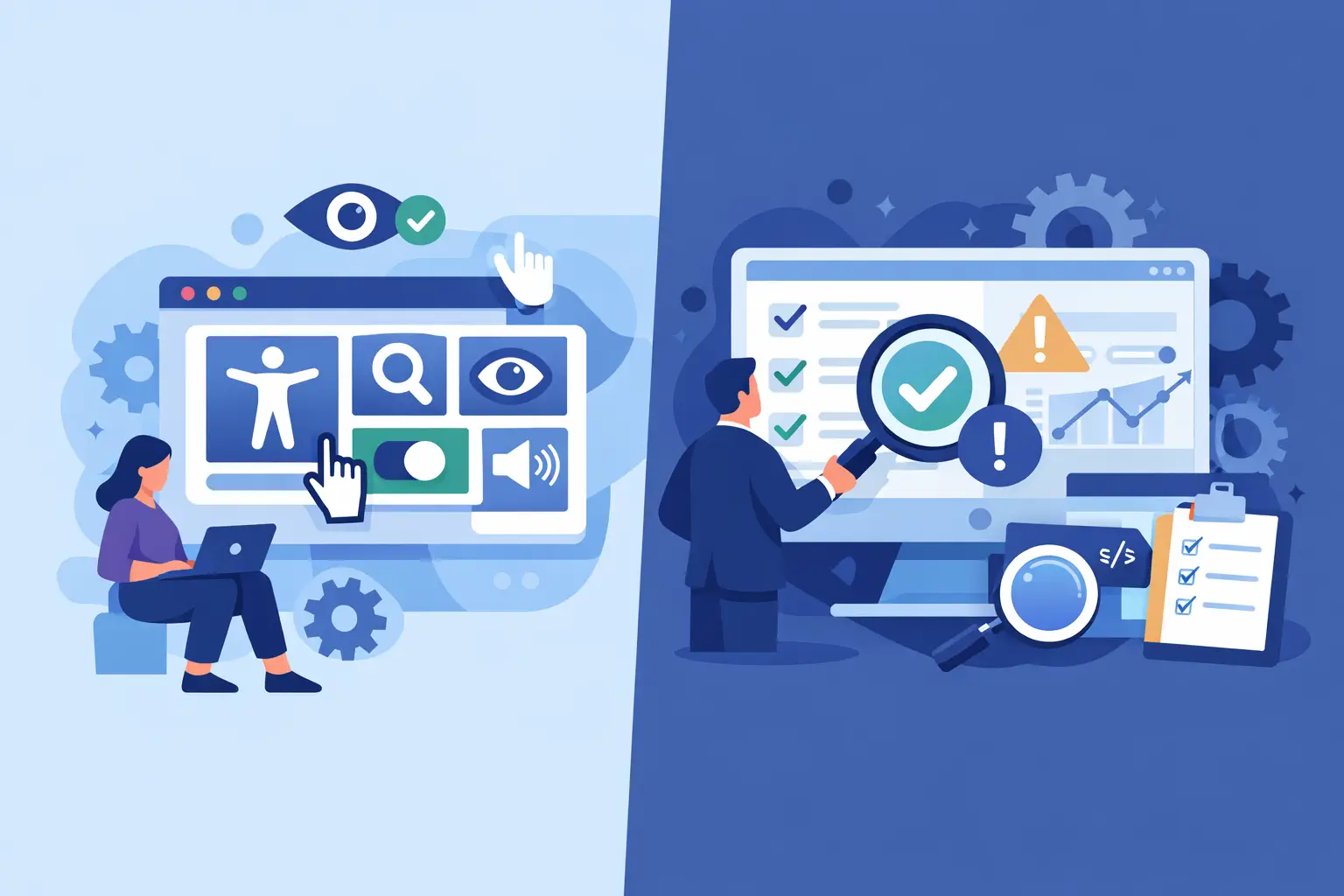
Accessibility Widgets Versus Audit Tools
An accessibility complaint rarely starts because a visitor could not enlarge text or switch to high contrast. It starts because a person could not complete a task: submit an application, understand a form error, download a required document, or navigate a menu with a keyboard. That distinction matters when evaluating accessibility widgets versus audit tools. One may improve a visitor’s immediate experience. The other helps teams find and correct the underlying barriers that create compliance exposure.
For WordPress site owners, agencies, schools, and government organizations, the practical answer is not that one category is universally good and the other is universally bad. Accessibility widgets and audit tools have different functions. A defensible accessibility program requires knowing where each belongs, what it can verify, and what still requires manual review.
Accessibility Widgets Versus Audit Tools: The Core Difference
An accessibility widget is typically a front-end interface that gives individual visitors display and navigation options. Depending on the product, it may offer text-size controls, contrast presets, font adjustments, cursor changes, reading guides, or an option to highlight links and headings. These controls can be useful for some users who want a personalized viewing experience without changing browser settings.
An audit tool examines the website itself. It scans content, templates, menus, widgets, media, code, and other site components for conditions that may violate WCAG success criteria or Section 508 requirements. A quality audit tool does not merely produce a score. It identifies the issue, shows where it occurs, explains why it matters, and directs the site owner toward remediation.
The difference is structural. A widget changes or supplements the way a page is presented after it loads. An audit tool identifies defects in the source content and implementation. If a button has no accessible name, a PDF is not tagged for accessibility, or a form field lacks a label, a visual control panel does not correct that source-level problem. The issue remains in the website and may continue to prevent assistive technology users from completing the task.
What Widgets Can Do Well
Widgets can be a reasonable supplemental feature when they are presented honestly and tested carefully. A visitor may appreciate controls for text spacing, visual contrast, or reduced motion. For a content-heavy site, these preferences can make reading more comfortable for some people.
They may also help organizations demonstrate that they are thinking about user choice. This has value when the widget does not interfere with existing accessibility, keyboard navigation, screen readers, or browser and operating-system preferences.
However, the widget itself must be accessible. Its trigger, controls, focus behavior, labels, color contrast, and close function all need testing. A poorly implemented toolbar can add another inaccessible component to every page. It can also create conflicts with a visitor’s established assistive technology or personal browser settings.
Most importantly, a widget should not be represented as a compliance solution. No interface overlay can reliably repair every inaccessible heading structure, invalid ARIA attribute, missing alternative text decision, inaccessible document, or broken keyboard interaction across a WordPress installation.
Why Audit Tools Address the Compliance Work
Accessibility compliance depends on the actual content and code that visitors use. That includes page templates, navigation systems, custom post types, forms, embedded media, images, tables, popups, downloadable files, and third-party integrations. On a large WordPress site, these issues often exist in places a content editor never sees in a standard page editor.
An automated audit tool is designed to make that workload manageable. It can review published content at scale, flag recurring patterns, and prioritize errors that affect user access. For example, a scan may identify empty links, skipped heading levels, insufficient color contrast, missing form labels, duplicate IDs, inaccessible tables, or images without appropriate alternative text.
The most useful tools integrate the findings into the publishing workflow. Instead of discovering problems months after launch, teams can review issues while creating or updating content. Publishing controls can prevent known accessibility errors from being introduced into a live page, while reports give developers and administrators a clear record of outstanding work.
For WordPress environments, coverage matters as much as the number of checks. A site may have accessible page content but an inaccessible menu created by the theme, an unlabeled search field in a widget area, or PDFs that were uploaded years earlier. Audit tools should support broad site scanning and provide enough detail to locate the affected element, template, or editing path.
Automated Scans Are Not a Complete Audit
Automated testing is essential, but it is not the same as a complete accessibility assessment. Software can detect many objective technical conditions quickly and consistently. It cannot always determine whether an image’s alternative text communicates the correct meaning, whether headings create a logical outline, whether a video has accurate captions, or whether a multi-step transaction makes sense to a screen reader user.
That limitation is not a reason to avoid automation. It is a reason to use it correctly. Automated scans remove a large portion of repetitive inspection work and expose issues that would otherwise be missed across hundreds or thousands of pages. Manual testing then addresses the questions that require context, judgment, and real user interaction.
A practical review process usually combines automated scanning with keyboard-only testing, screen reader testing, zoom and reflow checks, and review of critical user journeys. For a public agency, that may include paying a bill, applying for a permit, finding meeting materials, and completing contact forms. For a college, it may include admissions, course registration, financial aid, and access to instructional documents.
Common Misconceptions That Create Risk
The most costly mistake is treating a widget as a legal shield. Adding a toolbar does not establish conformance with WCAG 2.1 or WCAG 2.2, and it does not remove an organization’s responsibility to provide equal access. If the underlying site remains inaccessible, the operational and legal risk remains.
Another mistake is relying on a single accessibility score. Scores can be helpful for tracking improvement, but they are not a substitute for reviewing specific failures and user paths. A site can receive a favorable score while still blocking someone from submitting an important form.
Teams also underestimate non-HTML content. PDFs, office documents, embedded booking systems, maps, video players, and chat tools can all affect compliance. An audit process should identify these assets and assign ownership for remediation or replacement. If a third-party platform cannot meet accessibility requirements, the organization needs an accessible alternative or an equivalent way for users to complete the task.
Finally, do not treat accessibility as a one-time remediation project. WordPress sites change constantly. New posts, plugins, themes, documents, and campaigns can introduce new issues after an initial cleanup. Ongoing scans and editorial checks are necessary to maintain progress.
How to Build a More Defensible Accessibility Process
Start by deciding what must be reviewed. Include public pages, logged-in areas where applicable, templates, forms, document libraries, custom content types, navigation, and high-value conversion or service workflows. Do not limit the scope to the homepage and a handful of recent posts.
Next, run automated scans that map findings to recognized requirements and provide actionable remediation guidance. WP ADA Compliance Check is built for this WordPress-native workflow, scanning content and site components against WCAG and Section 508 requirements while identifying where corrections are needed. Use the results to correct high-impact and recurring issues first, especially failures affecting keyboard access, form completion, names and labels, contrast, and document access.
Then add manual verification for the tasks people rely on most. Test without a mouse. Confirm that focus is visible and follows a logical order. Check that dialogs can be closed and that error messages explain what must be fixed. Review screen reader announcements for controls, dynamic updates, and form validation.
A widget can remain part of this process if it adds useful visitor preferences and does not become the centerpiece of the accessibility claim. Position it as an optional convenience, not as a substitute for accessible source code, accessible documents, and tested user flows.
Assign clear responsibility for ongoing work. Content teams should know how to write alternative text, use heading structures, and avoid uploading inaccessible files. Developers should review themes, plugins, custom code, and integrations. Compliance leaders should monitor reports, document remediation decisions, and ensure accessibility is included in procurement and release processes.
The strongest accessibility program is visible in the work itself: pages that function by keyboard, forms that communicate clearly, documents people can use, and publishing practices that prevent repeat failures. Tools support that outcome, but the goal is always the same – dependable access to the information and services your organization provides.
Subscribe
Subscribe to receive daily Web Accessibility - Did you know? articles in your inbox.
