
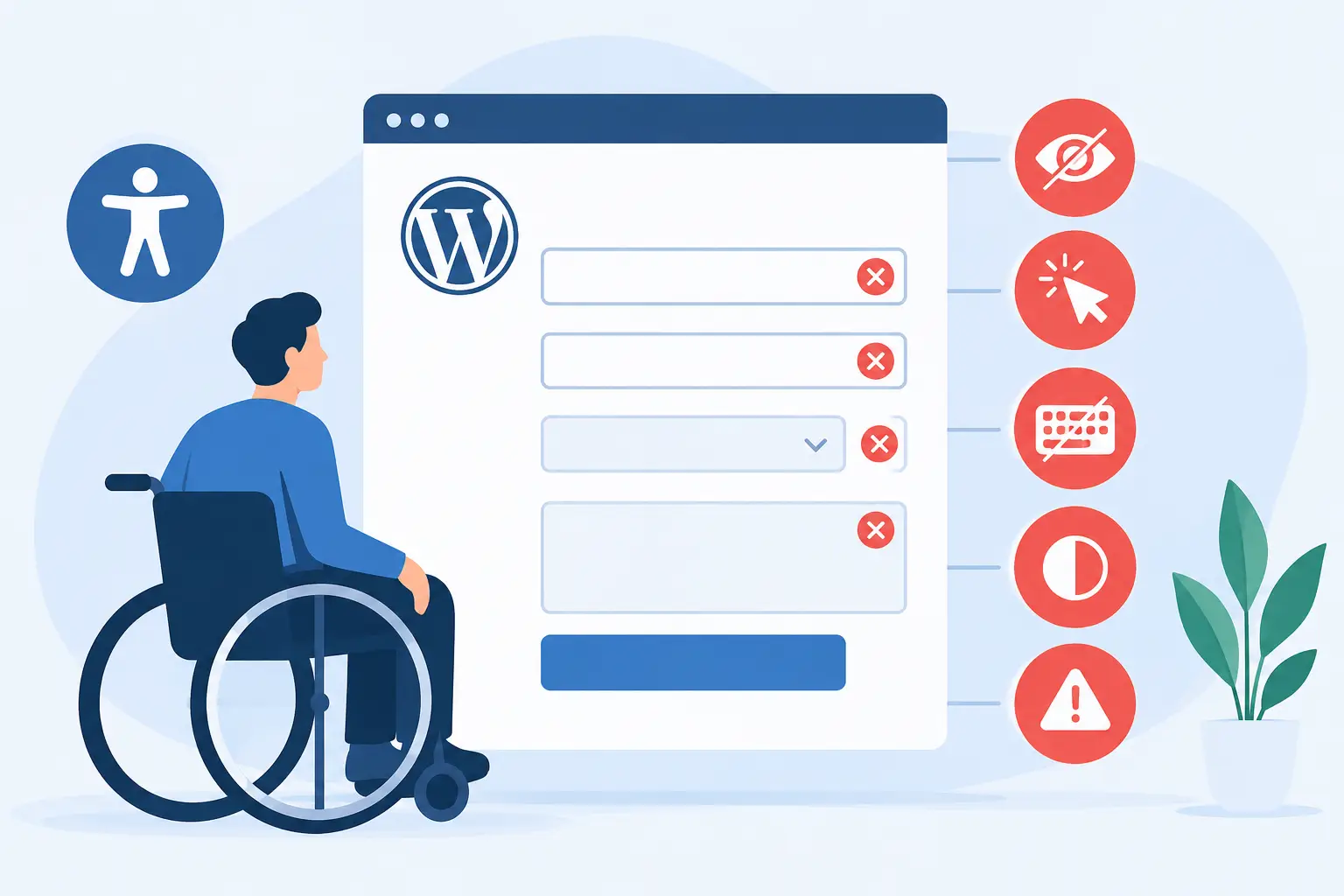
Five Common WCAG Form Failures on WordPress
A form can appear complete in a visual review and still prevent a visitor from requesting services, registering for a class, paying a bill, or submitting an application. The five common WCAG form failures below are especially costly because they affect high-value user actions and are frequently introduced by page builders, theme updates, and custom JavaScript.
For organizations subject to ADA, Section 508, or WCAG-based accessibility requirements, form accessibility is not a cosmetic refinement. A broken form can deny access to a public service or transaction. It also creates an avoidable compliance risk when the problem is present on core pages such as contact, admissions, appointment, donation, checkout, and account forms.
Five Common WCAG Form Failures That Create Risk
1. Fields have no programmatic label
A placeholder such as “Email address” is not a reliable substitute for a label. Placeholder text often disappears when a user begins typing, may have insufficient color contrast, and does not consistently provide the accessible name that assistive technology needs.
Each input needs an associated, persistent label. In standard HTML, the most dependable pattern is a `
This failure commonly appears when a WordPress form plugin is styled to hide labels or when a designer relies on icon-only fields. An icon for a calendar, search, or email field may be clear to a sighted user, but it does not establish a text alternative or programmatic relationship on its own.
WCAG 2.1 Success Criterion 3.3.2, Labels or Instructions, requires labels or instructions when user input is required. WCAG 1.3.1, Info and Relationships, also applies when visual field labels are not conveyed in the page structure.
The fix is usually straightforward: keep visible labels wherever possible and verify that every control has one clear accessible name. If a visible label truly cannot be used, an `aria-label` or `aria-labelledby` reference can provide a name, but native labels remain easier to maintain and audit.
2. Required fields and instructions rely on color alone
A red border, red asterisk, or red helper message does not communicate requirements to every visitor. Users with low vision, color vision deficiencies, or certain display settings may not perceive the meaning of color. Screen reader users may not receive the information at all if the requirement is only present visually.
Required status should be presented in text, such as “Required,” and exposed programmatically with the HTML `required` attribute or the appropriate ARIA state. The same principle applies to instructions. If a date must use MM/DD/YYYY, a password must include a specific character type, or an account number has a defined format, state that requirement before the user submits the form.
Do not assume a symbol explains itself. An asterisk can support a clear legend such as “Fields marked Required must be completed,” but it should not carry the full burden of communication. The required state must remain understandable when color and symbols are removed from the experience.
This addresses WCAG 1.4.1, Use of Color, along with 3.3.2. It also reduces abandonment. Clear instructions prevent users from guessing why a submission failed after they have already entered personal information.
3. Error messages are vague, visual-only, or disconnected from fields
“Please correct the errors below” is not enough when a form contains ten fields. Neither is a red outline with no written explanation. A user needs to know which field failed, what the issue is, and, when practical, how to correct it.
For example, replace “Invalid input” with “Email address: enter an address in the format [email protected]create new email.” Put the message close to the affected field, associate it programmatically where the form technology supports that relationship, and ensure the error is announced after validation occurs. If the form includes an error summary at the top, it should identify each error clearly and allow efficient navigation to the relevant control.
Client-side validation deserves careful testing. Many form tools inject error text into the page after submission, but do not expose the update to screen readers. A properly implemented live region can announce the summary or validation result without forcing the user to hunt through the page. However, excessive live announcements can become disruptive. Announce meaningful changes, not every keystroke.
These patterns support WCAG 3.3.1, Error Identification, and 3.3.3, Error Suggestion. For financial, legal, or otherwise significant submissions, review WCAG 3.3.4, Error Prevention, as well. Users may need a review step, confirmation screen, or a practical way to correct information before final submission.
4. Keyboard focus is lost, hidden, or placed in the wrong location
A visitor who cannot use a mouse must be able to complete every form action using a keyboard. That includes opening date pickers, selecting custom dropdown options, checking consent boxes, dismissing error messages, and submitting the form.
A common failure occurs after validation: the page refreshes or an error appears, but keyboard focus remains on the submit button with no indication that the submission failed. Another occurs in modal forms, where focus can move behind the dialog or become trapped without a route to close it. These are not minor usability defects. They can make a required form impossible to complete.
After a failed submission, move focus to a useful destination, typically an error summary or the first invalid field. Keep the focus indicator visible at all times. CSS that removes `outline` without a clearly visible replacement creates a frequent WCAG failure, particularly in branded themes that prioritize a minimal visual style.
Focus order must also match the visual and logical order of the form. Avoid layouts that use CSS positioning to create a visual sequence that differs from the tab sequence. Under WCAG 2.2, make sure focus is not obscured by sticky headers, chat tools, cookie banners, or other persistent interface elements.
Relevant requirements include WCAG 2.1.1, Keyboard; 2.4.3, Focus Order; 2.4.7, Focus Visible; and WCAG 2.2 Success Criterion 2.4.11, Focus Not Obscured (Minimum).
5. Custom controls do not expose a usable name, role, state, or status
Custom form components are a major source of failures. Visual dropdowns, segmented controls, searchable selects, calendars, file upload interfaces, and toggle switches may look polished while failing basic assistive technology expectations.
A custom control must communicate what it is, what it is called, its current value or state, and how a user operates it. A screen reader user should not hear an unlabeled “button” when the control is actually a required department selector. A keyboard user should not have to guess whether Enter, Space, arrow keys, or Escape will operate a date picker.
Native HTML controls are usually the lowest-risk choice. A standard “, checkbox, radio group, or input type can often meet user needs without the complexity of recreating browser behavior. Custom controls may be justified for a specific workflow, but they require testing with keyboards, screen readers, zoom, mobile browsers, and error states.
Also verify submission feedback. If a form sends successfully through AJAX, the confirmation must be announced as a status message and remain visible long enough to be understood. A visual toast that fades away after two seconds is not dependable confirmation for every user.
This area commonly involves WCAG 4.1.2, Name, Role, Value, and 4.1.3, Status Messages. It is one reason automated scanning should be paired with targeted functional testing on important forms.
Build Form Checks Into the Publishing Workflow
Form failures often return after a redesign, plugin update, or new campaign page because accessibility testing happens only before a major launch. A stronger process checks forms whenever content, templates, or integrations change. Review the published page, not only the form builder preview, because theme CSS and optimization scripts can alter labels, focus behavior, and error messaging.
For WordPress teams managing many pages and contributors, automated auditing provides the necessary baseline. WP ADA Compliance Check can scan WordPress content and site components against WCAG standards, identify actionable issues, and provide remediation guidance inside the workflow where publishing decisions are made. Automated results should direct attention to likely defects, while manual testing confirms that a real person can complete critical tasks from start to finish.
Start with the forms that affect access to services, revenue, enrollment, and public communication. Complete each one using only a keyboard, submit it with intentional errors, and listen to the feedback with a screen reader. That practical test often reveals the next accessibility fix that matters most to the people relying on your site.
Subscribe
Subscribe to receive daily Web Accessibility - Did you know? articles in your inbox.
