
Are Accessibility Widgets Sufficient for Compliance?
A visitor using a screen reader lands on a WordPress page with unlabeled form fields, an image-only button, and a PDF that cannot be read aloud. An accessibility toolbar may let that visitor enlarge text or adjust contrast, but it does not repair the underlying barriers. That is the central answer to the question, are accessibility widgets sufficient: no, not as a standalone accessibility or compliance strategy.
Widgets can be useful supplemental features. They can give visitors optional controls and demonstrate that an organization is thinking about accessibility. But ADA readiness and WCAG conformance depend on the actual structure, code, content, and documents on the site. If those elements are inaccessible, a widget cannot reliably make them compliant.
Are Accessibility Widgets Sufficient for WCAG Compliance?
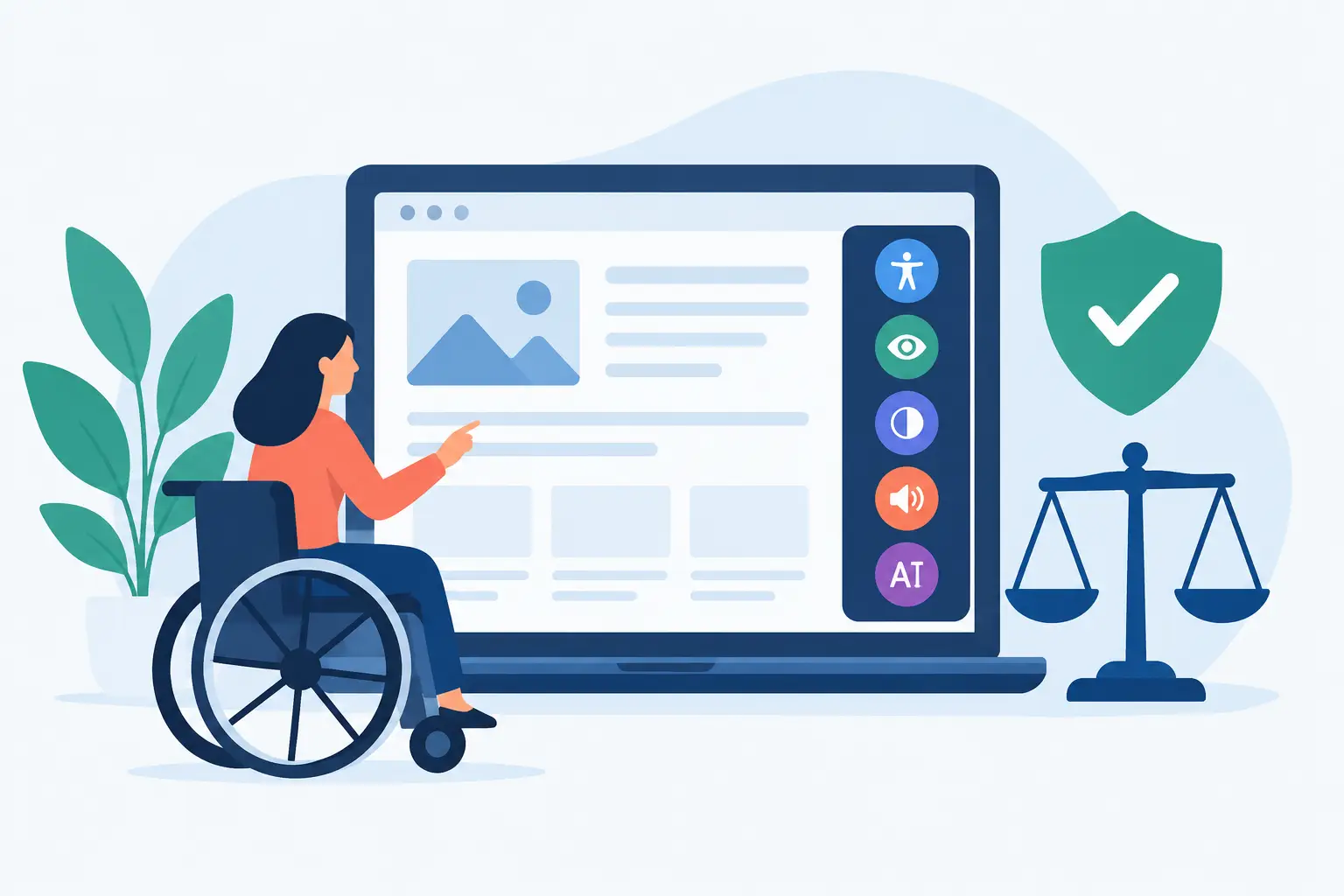
Accessibility widgets, often called overlays or toolbar solutions, add a panel that gives users choices such as text resizing, contrast adjustments, spacing changes, or cursor modifications. Those options may improve comfort for some people in some situations. They do not, however, change the fact that WCAG requirements apply to the website itself.
A website must still provide meaningful text alternatives, keyboard-operable controls, visible focus indicators, properly associated labels, logical heading structure, sufficient color contrast, accessible error messages, and correctly marked-up data tables. It must also handle media, third-party content, downloadable documents, and interactive workflows in an accessible way.
A widget cannot reliably infer the purpose of an unlabeled button. It cannot determine whether alternative text conveys the purpose of an image. It cannot turn a poorly structured PDF into an accessible document. It also cannot confirm that a keyboard user can complete a checkout, submit an application, or access a public meeting agenda without becoming trapped in a menu or modal.
For organizations subject to ADA obligations, Section 508 requirements, or internal accessibility policies, that distinction matters. The legal and operational risk is tied to barriers experienced by real users, not simply to the presence of a toolbar icon in the corner of a page.
What Widgets Can and Cannot Do
The appropriate role for a widget is supplemental. A visitor-controlled text-size adjustment may be helpful. A contrast preference can be useful when it does not interfere with the site’s native design or assistive technology. These features can support a more flexible user experience.
The limitation is that widgets generally act after the page has loaded. They do not replace accessible authoring practices or remediate all source-level issues. In some cases, automatic visual changes can create new problems, such as obscured content, overlapping elements, broken responsive layouts, or confusing keyboard behavior.
Consider a common WordPress example: a contact form built with placeholder text but no visible labels. A widget may change the font size around the form, but it does not programmatically associate each field with a label. A screen reader user may still hear only “edit text” with no indication of what information is required. The defect remains in the form markup.
The same issue applies to navigation. If a mobile menu is not keyboard accessible, color filters and font controls do not make it operable. If a video has no captions, a contrast toggle does not provide the missing information. If a linked PDF is scanned as an image, no on-page tool can supply its document structure.
Compliance Requires Source-Level Remediation
A defensible accessibility program begins with finding and fixing barriers at their source. For WordPress teams, that means reviewing content as well as the systems that generate it: themes, page builders, templates, custom post types, menus, widgets, forms, plugins, media libraries, and linked documents.
Automated testing is a practical first layer because it can identify recurring issues across a large site. It is especially valuable when editors publish frequently, agencies manage multiple client sites, or an institution has years of archived content. Automated scans can detect many measurable failures, including missing alternative text, empty links, heading-order concerns, language attributes, duplicate IDs, contrast issues, and form-label errors.
Automation does not eliminate the need for human review. Some requirements depend on context. A scanner can flag missing alt text, but a reviewer must decide whether the description is meaningful. A tool can identify a skipped heading level, while a content owner may need to determine whether the page’s information hierarchy still makes sense. Keyboard testing and screen reader testing remain essential for critical tasks and complex interactions.
The goal is not to choose between automation and manual testing. It is to use automation to establish broad coverage and repeatable controls, then use skilled review where judgment is required.
Why WordPress Publishing Workflows Matter
Accessibility failures often return after an initial remediation project. A redesigned template may be accessible at launch, then a new editor uploads an untagged PDF, inserts a low-contrast promotional graphic, or adds a link labeled “click here.” Without an ongoing process, compliance degrades one post, page, and plugin update at a time.
That is why a WordPress-native workflow is more effective than a one-time audit or a widget-only approach. Teams need visibility into issues before and after publishing, clear instructions for correcting them, and reporting that identifies where a problem exists. They also need a practical way to account for site areas that are easily missed, including custom content types, archive pages, navigation, sidebar content, and PDFs.
WP ADA Compliance Check supports that workflow by scanning WordPress content and site components against WCAG 2.1, WCAG 2.2, and Section 508 checks, then providing issue details and remediation guidance within the environment where teams work. For organizations with high publishing volume, controls that flag or prevent inaccessible content before publication can reduce the cost of fixing problems later.
A More Reliable Accessibility Strategy
An accessibility widget can be part of the visitor experience, but it should never be the organization’s only control. A more reliable program combines technical auditing, remediation, testing, governance, and ongoing monitoring.
Start by scanning the full website rather than a few high-traffic pages. Include templates, global elements, menus, forms, media, document links, and custom post types. Prioritize failures that block access to core services, such as account portals, payments, enrollment, applications, public records, appointments, and emergency information.
Next, assign remediation work to the people who can fix the source. Developers may need to correct template markup or JavaScript behavior. Content editors may need to rewrite link text, add accurate image descriptions, or repair headings. Document owners may need to replace inaccessible PDFs with accessible HTML pages or properly tagged files.
Then validate the fixes. Re-scan after changes, test essential workflows by keyboard, and review representative pages with assistive technologies. For a government department or educational institution, testing should include the services residents, students, applicants, and staff must use to participate fully.
Finally, make accessibility part of ordinary publishing operations. Train authors on the most common issues. Establish standards for images, headings, tables, video, and documents. Review changes after WordPress core, theme, and plugin updates. Keep reports that show the organization’s remediation activity and remaining work.
The Practical Answer
Widgets are not inherently harmful, and they may offer useful preferences to some visitors. The problem begins when a widget is marketed or treated as a substitute for accessible design, WCAG-based auditing, and source-level remediation. That approach leaves barriers in place and can leave an organization with a false sense of compliance.
The more practical standard is straightforward: build accessible WordPress pages, verify them against applicable requirements, fix documented failures, and maintain those controls as content changes. A toolbar can support that work. It cannot do the work for you.
Subscribe
Subscribe to receive daily Web Accessibility - Did you know? articles in your inbox.
