Accessible Form Labels: Enhancing Usability and Compliance with WCAG 2.2
Understanding the Importance of Accessible Form Labels
Accessible form labels are crucial for users, especially those utilizing assistive technologies. Properly defined labels improve usability and ensure compliance with the WCAG 2.2 guidelines. They provide context and meaning to form fields, enhancing the overall experience for all users. This article delves into the significance of accessible form labels, best practices for implementation, and how the WP ADA Compliance Check Plugin can help in ensuring compliance.
Best Practices for Implementing Accessible Form Labels
According to WCAG 2.2, every form element must have a clearly associated label. This can be achieved in several ways:
- Using the
<label>Element: Always use the<label>element to define labels for form controls. This is essential for screen reader users. - Associating Labels with Form Controls: Use the
forattribute of the<label>element to link it to the corresponding form input, ensuring that clicking the label focuses the input field. - Providing Contextual Information: If necessary, use additional description tags for complex forms, such as
<span>or<div>elements, with appropriate ARIA attributes to enhance understanding.
Code Snippet Example of Accessible Form Labels
Here’s a simple example of a form with proper accessibility practices:
<form action="/submit" method="post">
        <div>
            <label for="username">Username:</label>
            <input type="text" id="username" name="username" required>
        </div>
        <div>
            <label for="email">Email Address:</label>
            <input type="email" id="email" name="email" required>
        </div>
        <div>
            <label for="password">Password:</label>
            <input type="password" id="password" name="password" required>
        </div>
        <button type="submit">Submit</button>
    </form>
This example shows how to properly associate labels with their corresponding inputs, making it accessible for screen readers and improving user experience.
How to Remediate Issues with WP ADA Compliance Check
Manually tracking down hidden structural code fragments across a massive content catalog or a complex multi-author site can take dozens of tedious hours. Deploying a comprehensive tool like the WP ADA Compliance Check Plugin completely automates the process of auditing, reporting, and sometimes correcting critical web accessibility errors.
Automated Remediation
The plugin evaluates your database content against 83 thorough accessibility checks and automatically corrects 42 distinct error types. During deep site scans, it uncovers hidden errors and highlights the exact location of the issue, saving developers from manually hunting through the raw HTML editor.
Enforcing Pre-Publishing Safeguards
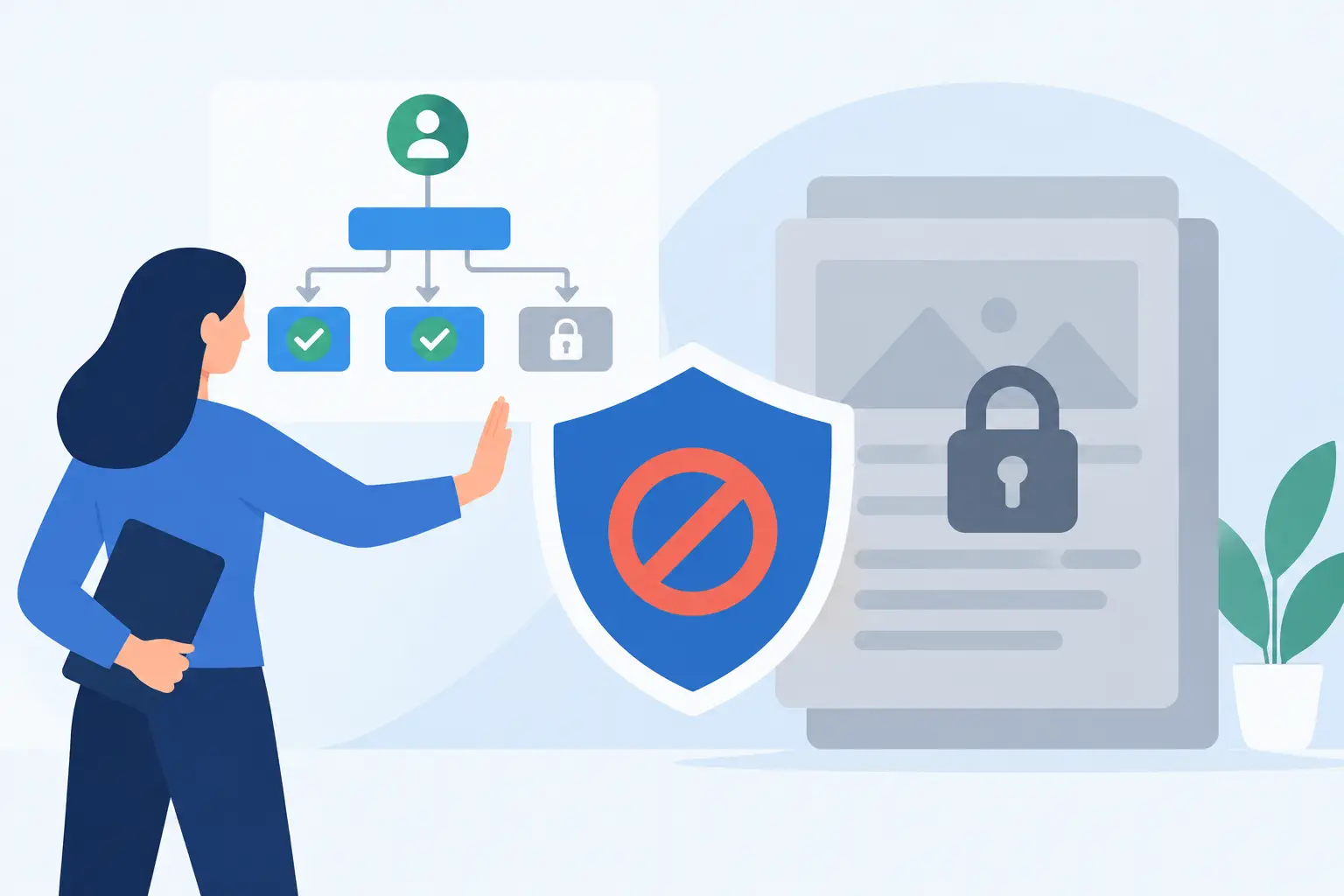
To ensure that new content modifications don’t break compliance, the plugin features robust Pre-Publishing Controls. If an editor tries to publish a page containing web accessibility errors, the plugin alerts the user or restricts publication. This content safeguard forces correction at the workflow source before the page goes live.
Getting Started
If you are not sure where to begin with web accessibility, start by using the WP ADA Compliance Check Free Web Accessibility Scanner to run a scan of your website. For a more integrated solution, WordPress website owners should also try the free WP ADA Compliance Check Basic plugin to automatically audit posts and pages for common compliance issues right from their dashboard.
Subscribe
Subscribe to receive daily Web Accessibility - Did you know? articles in your inbox.