
Accessibility Plugin vs Accessibility Widget
A website visitor using a keyboard cannot use a menu because its focus state is missing. A screen reader user reaches an unlabeled form field. A PDF linked from a department page has no readable structure. An accessibility widget may offer display controls, but it does not fix the underlying code that created these barriers. That distinction is central to the accessibility plugin vs accessibility widget decision for WordPress site owners.
Organizations facing ADA, Section 508, or WCAG obligations need to distinguish between convenience features and a compliance workflow. Both tools can have a place on a website. They do not perform the same job, and treating a widget as a substitute for auditing and remediation creates avoidable legal and operational risk.
Accessibility Plugin vs Accessibility Widget: The Core Difference
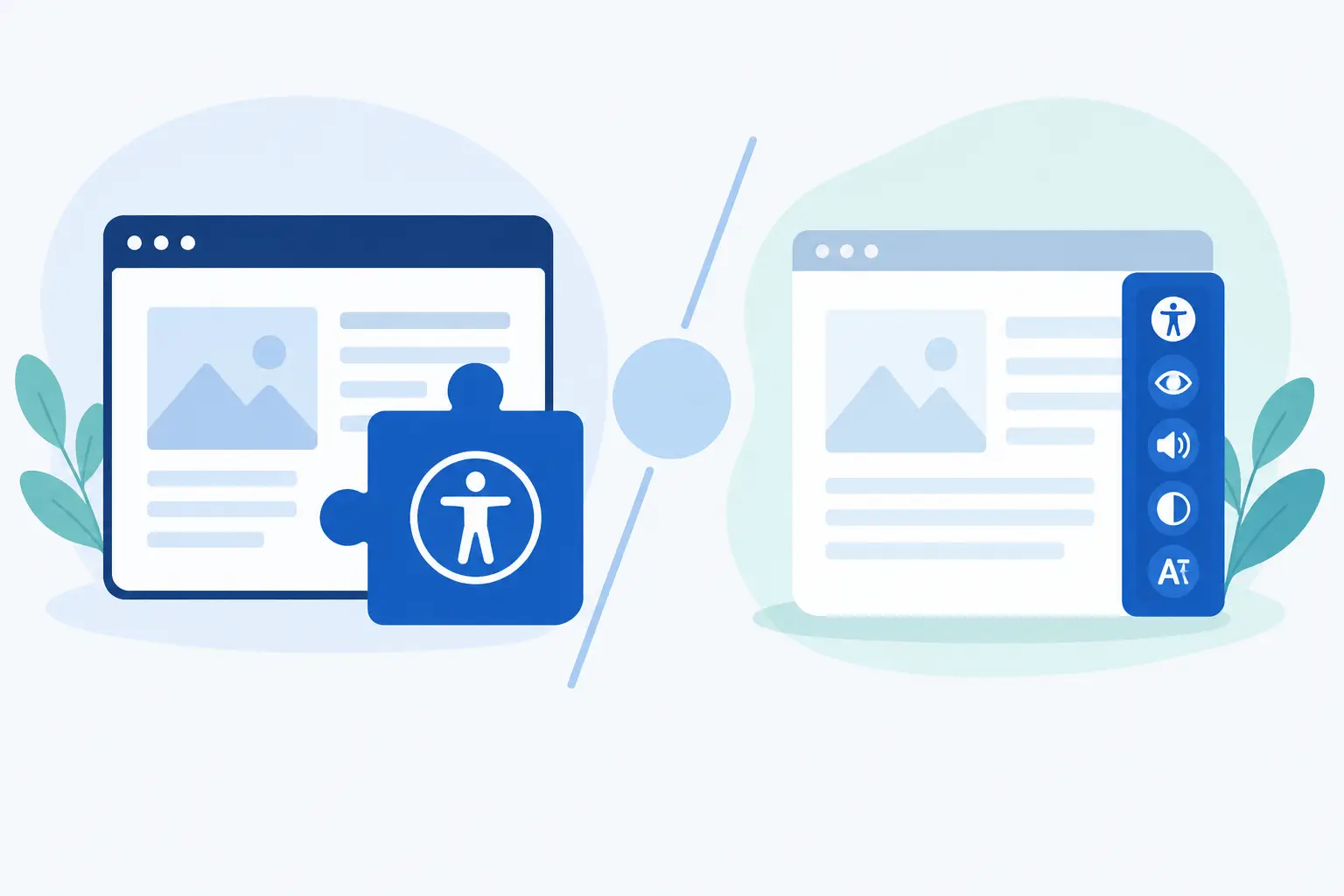
An accessibility widget is a visitor-facing interface, often displayed as an icon or toolbar on the front end of a website. Depending on the product, it may allow users to adjust text size, contrast, spacing, or cursor settings. These controls can be useful preferences for some visitors, particularly when they supplement an accessible site.
An accessibility plugin is a WordPress-native tool that evaluates website content and code for accessibility issues. A compliance-focused plugin scans for conditions that may fail WCAG success criteria, identifies the affected pages or files, and provides remediation guidance. Some plugins can also automatically correct a defined set of common errors.
The difference is straightforward: a widget changes or adds options to the visitor experience; an accessibility plugin helps site owners find and resolve the source-level barriers that affect every visitor. A font-size control does not add missing alternative text. A contrast toggle does not repair invalid heading order. A toolbar cannot reliably make an inaccessible form, menu, modal, video, or PDF conformant.
What an Accessibility Widget Can and Cannot Do
Widgets are not inherently harmful. On a site that is already maintained for accessibility, a well-implemented toolbar may give visitors an additional way to personalize their viewing experience. Text resizing and spacing controls can be helpful when they work predictably and do not interfere with keyboard access, responsive layouts, or assistive technology.
The problem begins when a widget is positioned as an automatic compliance solution. Accessibility is not a visual setting that can be placed over an inaccessible website. WCAG requirements address structure, semantics, keyboard behavior, focus management, labels, error handling, media alternatives, timing, document accessibility, and many other conditions that must be addressed in the content, theme, plugins, and custom code.
Consider a contact form with fields that have placeholder text but no programmatic labels. A widget may change the page colors or enlarge text, but a screen reader still may not announce the field purpose. Similarly, an overlay cannot reliably correct an interactive element that cannot receive keyboard focus or a menu that traps users after it opens.
There is also a governance issue. A widget can create the impression that accessibility has been handled, which may reduce the urgency to repair known problems. For agencies, institutions, and regulated organizations, that is not a defensible process. Compliance management requires documented findings, assigned remediation work, retesting, and controls that prevent the same errors from being published again.
What an Accessibility Plugin Adds to a Compliance Workflow
A serious accessibility plugin supports the work that widgets do not perform: identifying accessibility failures before and after publication, locating the relevant content or code, and helping the responsible team correct it.
For WordPress environments, scan coverage matters. Accessibility problems are rarely limited to standard posts and pages. They can appear in custom post types, page-builder content, menus, widgets, theme templates, archives, comments, forms, media libraries, and linked documents. A website-wide assessment should account for the actual publishing environment, not only the page currently open in the editor.
The most useful reports are actionable. They identify the issue, explain why it matters, reference the relevant accessibility requirement when appropriate, and direct the user to the exact place where remediation should occur. For a content editor, that might mean a missing image description in a post. For a developer, it may mean a theme template with an empty button label or an incorrect ARIA implementation.
A plugin also supports repeatable operations. Instead of conducting a one-time review before a launch, teams can scan as content changes, track open errors, and build accessibility into ordinary WordPress maintenance. Publishing controls can be especially valuable for organizations where multiple authors create content and accessibility requirements must be enforced consistently.
WP ADA Compliance Check is designed for this workflow, with automated WCAG 2.1, WCAG 2.2, and Section 508 auditing, detailed remediation guidance, and coverage intended for the breadth of a WordPress website rather than only its visible page content.
Why Automated Scanning Is Necessary but Not Sufficient
Automated testing is essential because it finds repeatable, detectable issues at a speed that manual review cannot match across a large website. It can flag missing alternative text, empty links, heading concerns, language attributes, possible contrast failures, form-label problems, and many other conditions. It is particularly effective for finding recurring errors across hundreds or thousands of URLs.
However, no automated tool can certify that every user experience is accessible. Some WCAG requirements require human judgment. An automated scan can confirm that an image has alternative text, but it cannot always determine whether that text communicates the image’s purpose in context. It can identify a heading sequence concern, but a reviewer must decide whether the document structure accurately reflects the content.
The correct approach is not automation versus manual testing. It is automation plus targeted expert review. Use automated scanning to establish broad coverage, prioritize remediation, and prevent common regressions. Then manually test critical user paths, complex interactions, forms, navigation, multimedia, and documents with keyboard-only navigation and relevant assistive technologies.
Choosing the Right Tool for Your WordPress Site
The right choice depends on the goal. If a site is already undergoing ongoing WCAG remediation and wants to offer optional visual preferences, an accessibility widget can be a secondary feature. It should be tested carefully to ensure it does not introduce conflicts or obscure existing controls.
If the goal is ADA readiness, Section 508 support, risk reduction, or a sustainable accessibility program, start with an accessibility auditing and remediation tool. Ask practical questions before selecting one:
- Does it scan published content, theme files, menus, custom post types, widgets, and other WordPress components that your site uses?
- Does it provide issue-level guidance and clear editing paths rather than generic warnings?
- Does it support the standards relevant to your organization, including WCAG 2.1, WCAG 2.2, and Section 508 where required?
- Can it scan routinely as content changes and help prevent inaccessible content from being published?
- Does it support reporting, remediation tracking, and the needs of agencies or multi-site teams?
A small marketing site may need a manageable way to keep new posts and landing pages accessible. A university, government department, healthcare organization, or enterprise agency may need broader scan coverage, exportable reports, governance controls, and a process for handling large libraries of pages and files. The scale differs, but the principle does not: accessibility must be managed at the source.
The Compliance Risk of Relying on a Widget Alone
Accessibility claims should match what a tool actually does. A widget that offers user controls may improve preference options, but it does not establish conformance with WCAG or eliminate ADA exposure. Courts, customers, employees, students, and constituents experience the website’s actual usability, not its marketing claims.
A defensible accessibility effort includes evidence that the organization is actively identifying barriers, correcting them, and maintaining accessible publishing practices. Scan reports, remediation records, periodic manual testing, documented policies, and staff training all contribute to that record. A visible widget alone does not.
This is especially relevant when accessibility errors are embedded in templates or shared components. One inaccessible navigation pattern can affect every page on a site. One improperly configured form can block a critical transaction. Finding and correcting the root cause is more valuable than asking every visitor to adapt around it.
Make the Widget a Supplement, Not the Strategy
The practical answer to the accessibility plugin vs accessibility widget question is not that every widget must be removed. It is that a widget should never be the primary compliance plan. Use it, if appropriate, as an optional visitor convenience after verifying that it supports rather than disrupts accessibility.
Build the primary strategy around regular scanning, source-level remediation, standards-based testing, and editorial accountability. When accessibility is handled where content and code are created, WordPress teams gain more control, visitors encounter fewer barriers, and compliance work becomes a manageable part of publishing rather than a last-minute response to risk.
Subscribe
Subscribe to receive daily Web Accessibility - Did you know? articles in your inbox.
