
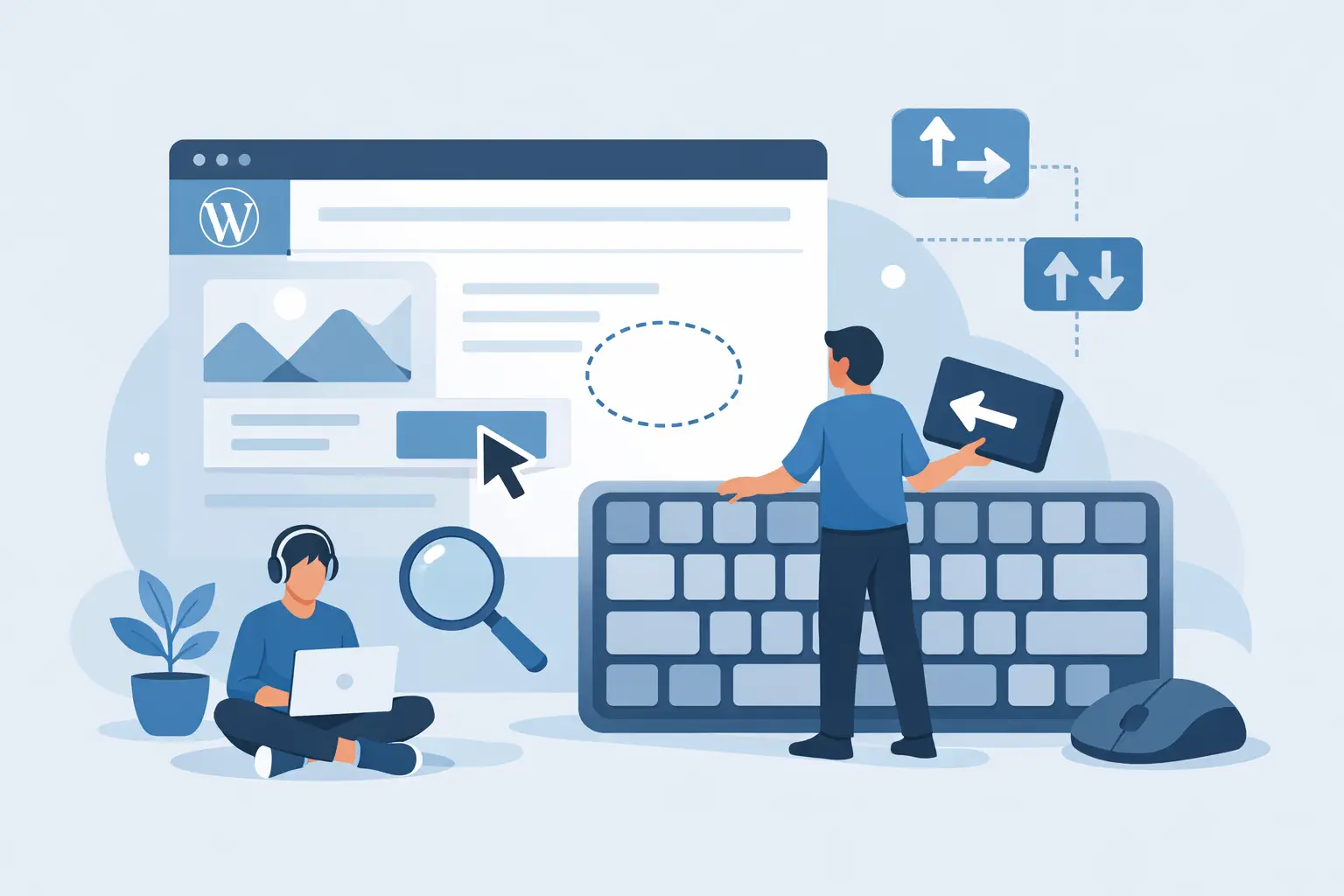
How to Test Keyboard Navigation in WordPress
A WordPress page can look polished, pass a basic visual review, and still be unusable for someone who relies on a keyboard. If a visitor cannot reach the menu, see where focus is located, operate a form, dismiss a popup, or return from a modal, the site has a functional accessibility failure. To test keyboard navigation in WordPress, you need to review the real path a keyboard user takes through templates, content, plugins, and interactive controls.
Keyboard access is a core requirement under WCAG 2.1 and WCAG 2.2. It also affects Section 508 readiness and the practical ADA risk posture of public-facing websites. This is not limited to a homepage audit. WordPress sites often introduce keyboard barriers through page builders, menu plugins, sliders, cookie banners, search overlays, embedded forms, and custom theme code.
What Keyboard Navigation Must Accomplish
A keyboard-only visitor should be able to complete the same meaningful tasks as a mouse user. That includes finding information, opening navigation, submitting forms, making selections, purchasing a product, or accessing account functions. The requirement is not that every pointer-based interaction works identically. The requirement is that an equivalent keyboard-accessible method is available.
WCAG Success Criterion 2.1.1, Keyboard, requires that functionality be operable through a keyboard interface unless the underlying function requires a path-dependent input. Drawing a freehand signature is one example where a keyboard cannot reproduce the same action. Opening a dropdown menu, advancing a carousel, or closing a dialog are not exceptions.
Testing must also account for related requirements. A control may technically receive keyboard focus but still fail if its focus indicator is hidden, its sequence is illogical, or focus becomes trapped inside a component. These failures commonly involve WCAG 2.4.3 Focus Order, 2.4.7 Focus Visible, 2.4.11 Focus Not Obscured in WCAG 2.2, and 2.1.2 No Keyboard Trap.
How to Test Keyboard Navigation in WordPress
Start in a standard desktop browser with your mouse set aside. Use a private or logged-out browser session when possible, because the WordPress admin bar and authenticated user tools can change focus order. Test both primary templates and high-value user journeys, not only individual pages.
Refresh the page, then press the Tab key. Continue forward through every interactive element. Use Shift + Tab periodically to move backward and confirm that reverse navigation is also predictable. The first focusable element should generally be a skip link or another logical page-level control. A skip link lets keyboard users bypass repeated header navigation and move directly to the main content.
Use these actions throughout the test:
- Tab to move forward through links, buttons, fields, and controls.
- Shift + Tab to move backward.
- Enter to activate links and most buttons.
- Space to activate buttons, checkboxes, and certain custom controls.
- Arrow keys where a component pattern requires them, such as radio groups, menus, or tabs.
- Escape to close dialogs, menus, search overlays, and other dismissible layers.
Do not assume a control works because it can be focused. Test its full behavior. A menu item may receive focus but fail to open with Enter. A form field may be reachable but have no visible label. A modal may open properly but send focus behind the dialog, leaving users to tab through the page they can no longer see.
Check the Focus Indicator at Every Step
Focus is the visual marker that tells a keyboard user which element will respond next. In many WordPress themes, designers remove the browser’s default outline without supplying a replacement. The result is a visitor moving through a page with no reliable indication of their current position.
As you tab, verify that the focused item is obvious against its background and is not covered by a sticky header, chat button, cookie notice, or accessibility widget. Pay close attention to low-contrast outlines, subtle color-only changes, and focus states that disappear on dark sections or image backgrounds.
A visible focus treatment should remain clear on navigation items, links within body content, form controls, embedded third-party tools, and buttons generated by page builders. Test responsive breakpoints as well. Mobile navigation patterns can introduce a different menu, different controls, and different focus behavior from the desktop layout.
Follow the Page in a Logical Order
The tab sequence should generally follow the visual and structural order of the page. Keyboard users should not jump from the header to the footer, then back into the main content, unless there is a specific and understandable reason.
This problem often appears when a layout uses CSS positioning, duplicate navigation for desktop and mobile, hidden elements that remain focusable, or custom `tabindex` values. Positive `tabindex` values can force an artificial focus sequence and are usually a warning sign. Native HTML order and properly structured markup provide a more dependable result.
On a typical WordPress page, review the skip link, logo link, primary navigation, utility navigation, search, page content, calls to action, forms, related content, footer navigation, and overlay controls. The goal is not to make the visitor tab through every decorative element. Decorative icons and non-interactive layout containers should not receive focus at all.
Test WordPress Components Where Failures Hide
A single successful test of a blog post does not validate the site. WordPress environments combine theme files, plugins, widgets, blocks, custom post types, and external embeds. Each layer can introduce keyboard defects.
Begin with the header. Confirm that dropdown menus open and close by keyboard, that submenu items can be reached, and that focus does not disappear when a menu expands. If the menu opens on mouse hover only, keyboard users may never access it. If a menu opens automatically on focus, make sure users can move through it without unexpected closing behavior.
Next, test forms. Tab through required fields, checkboxes, radio buttons, date controls, validation messages, CAPTCHA alternatives, and submission buttons. After an invalid submission, focus should move to the error summary or first relevant error in a way that helps the user recover. Validation text that appears visually but is not announced or reachable is not enough.
Then test overlays and dynamic features. Cookie banners, newsletter popups, lightboxes, search drawers, appointment tools, shopping carts, accordions, tab panels, and chat tools require careful review. When an overlay opens, focus should move into it. While it is open, keyboard focus should remain within the active dialog when appropriate. When it closes, focus should return to the control that opened it.
PDF links deserve a separate workflow. Keyboard testing of the WordPress page does not establish that the linked document is accessible. PDFs can contain their own navigation, form, reading-order, and focus problems and should be audited separately.
Document Failures So They Can Be Remediated
A useful keyboard test result identifies more than a general complaint such as “menu is inaccessible.” Record the page URL, template or WordPress component, browser used, exact keystrokes, expected behavior, actual behavior, applicable WCAG criterion, and the affected user task.
For example: “On the Services page, tabbing from the final primary navigation item skips the search button and moves to the footer. Expected result: the search button receives visible focus after the navigation. Actual result: the button is unavailable by keyboard.” This gives a developer or agency a reproducible defect rather than an ambiguous request.
Screenshots or short screen recordings can help demonstrate missing focus indicators and unexpected focus order. However, they should support the written reproduction steps, not replace them. A remediation team needs to know what code, plugin setting, template, or block pattern controls the failure.
Combine Manual Testing With Automated WCAG Auditing
Automated auditing is valuable because it can identify patterns across a WordPress site at scale. It can flag missing form labels, empty links, improper heading structures, some focus-related CSS concerns, and other issues that contribute to inaccessible keyboard experiences. It also helps establish a repeatable publishing workflow as content changes.
Automation cannot confirm every keyboard interaction. A scanner cannot reliably determine whether a custom menu opens with Enter, whether focus is trapped in a modal, or whether the tab order makes sense to a real user. Manual keyboard testing remains necessary for interactive workflows and custom components.
WP ADA Compliance Check can support this process by scanning published content, theme files, menus, widgets, custom post types, linked pages, and other WordPress areas against WCAG and Section 508 criteria. Use automated findings to prioritize likely defects, then manually validate the keyboard path through the components that visitors actually use.
For agencies and organizations with multiple editors, make keyboard review part of pre-publication quality control. New landing pages, form changes, plugin updates, theme releases, and marketing overlays can all alter focus behavior. A site that was accessible last quarter can acquire a serious keyboard barrier with one poorly configured popup.
The most practical standard is simple: before publishing a change, ask whether a person using only Tab, Shift + Tab, Enter, Space, arrow keys, and Escape can complete the intended task without losing their place. That question turns keyboard accessibility from a one-time audit item into a controlled WordPress publishing practice.
Subscribe
Subscribe to receive daily Web Accessibility - Did you know? articles in your inbox.
