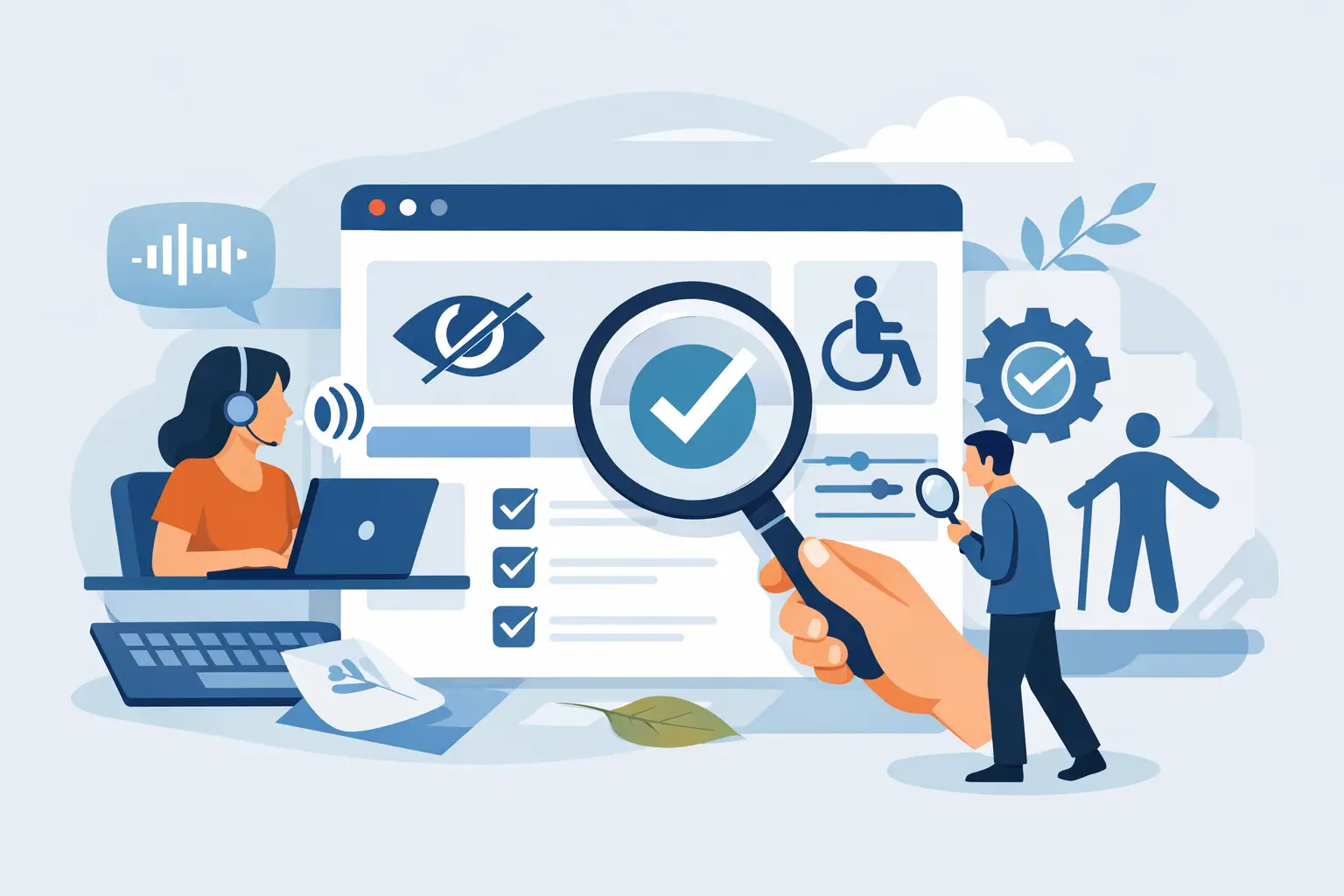
How to Audit Website Accessibility
A website can look polished, load fast, and still fail the users who rely on keyboard navigation, screen readers, captions, sufficient contrast, or clear form labels. That is the gap an accessibility audit is meant to expose. If you need to know how to audit website accessibility, the right approach is not a quick homepage scan. It is a standards-based review that shows where your site fails WCAG requirements, how broadly those failures appear, and what to fix first.
For WordPress site owners, agencies, schools, and public entities, that distinction matters. Accessibility is not a design preference. It is an operational requirement tied to ADA readiness, Section 508 obligations, procurement standards, and litigation risk. A useful audit must give you more than a score. It should give you a defensible process.
How to audit website accessibility the right way
The first mistake many teams make is treating accessibility as a one-time pass or fail event. In practice, auditing is a combination of automated detection, manual validation, and remediation review. Automated tools can identify missing alt text, empty links, low contrast, skipped headings, and many code-level failures. They cannot reliably judge whether alt text is meaningful, whether link text makes sense out of context, or whether a custom widget is usable with assistive technology.
That is why a real audit starts with scope. Before you test anything, define what is being audited. On a typical WordPress site, that should include published pages, posts, custom post types, navigation menus, widgets, forms, media, PDFs, search results, and theme templates. If your site uses third-party plugins for calendars, events, popups, ecommerce, or page builders, include those user flows too. Accessibility failures often live in reusable components, which means one flawed template can affect hundreds of URLs.
The next step is selecting the standard you are auditing against. Most organizations use WCAG 2.1 Level AA as the baseline, though WCAG 2.2 is increasingly relevant and public-sector environments may also need to account for Section 508 requirements. This is not a minor detail. Your findings should map back to a recognized standard so remediation decisions are clear and reports are credible.
Start with automated scanning, but do not stop there
Automated testing is the fastest way to identify patterns at scale. It helps answer practical questions early. How many pages have missing form labels? Are contrast issues isolated to one landing page or repeated across the theme? Are PDFs introducing an entirely separate accessibility problem?
For WordPress environments, broad scan coverage is especially important. A shallow crawler may miss template files, archived content, custom fields, media attachments, or elements generated by plugins. That creates false confidence. A better audit process scans the full site structure and reports the exact issue location, affected standard, and editing path so the right team can act quickly.
This is where tooling matters. A WordPress-native accessibility checker can reduce the time between detection and remediation because it surfaces issues inside the publishing workflow rather than in a disconnected report. In large environments, that difference is operationally significant. If content authors, developers, and compliance managers cannot see what failed and where it lives, issues tend to persist.
Still, automation has limits. Most automated tools catch only a portion of possible WCAG failures. They are excellent for finding detectable code problems and recurring patterns. They are weaker when context, meaning, or user interaction must be judged.
Manual checks are where the audit becomes reliable
After the automated scan, validate the experience manually. Start with keyboard-only navigation. Can a user move through menus, buttons, form fields, modal windows, and embedded tools without a mouse? Is the focus indicator visible? Does focus move in a logical order? Can users reach every interactive element and exit every component?
Then review the site with a screen reader. You do not need a full assistive technology lab to find common problems. Listen to how page titles, headings, navigation regions, buttons, links, form instructions, and error messages are announced. If a page sounds confusing, repetitive, or incomplete, that is usually a sign of structural problems in the markup.
Forms deserve special attention because they are frequent sources of user failure and legal complaints. Check whether each field has a programmatically associated label, whether required fields are identified clearly, whether validation errors are announced to assistive technology, and whether instructions are available before the user submits the form. A form that only shows red error text after submission is often noncompliant and frustrating.
You should also inspect media and document accessibility. Videos need accurate captions, and some use cases call for transcripts or audio descriptions. PDFs should not be assumed accessible because they open correctly. Many organizations publish scanned, untagged, or poorly structured PDF files that are effectively unusable with assistive technology. If your site relies on downloadable forms, policy documents, meeting materials, or reports, your audit is incomplete without reviewing them.
Prioritize issues by impact, not just count
A useful accessibility audit does not hand over a long spreadsheet and stop there. It classifies findings by severity, frequency, and remediation path. A missing alt attribute on one decorative image is not the same as an inaccessible navigation menu, a checkout flow that fails by keyboard, or a sitewide contrast problem embedded in the theme.
This is where many teams lose momentum. They fix isolated content errors while leaving systemic template issues untouched. The better sequence is usually to address global code and design patterns first, then clean up page-level content. If the same faulty button component appears sitewide, repairing that component may remove dozens or hundreds of violations at once.
It also helps to separate issues by owner. Developers typically handle template structure, ARIA misuse, keyboard traps, modal behavior, and form markup. Content teams handle alt text, heading order, link language, table formatting, and document uploads. Compliance managers often need a reporting layer that shows progress against standards and identifies unresolved high-risk items.
What a complete accessibility audit should document
If you are wondering how to audit website accessibility in a way that supports compliance decisions, the final output matters as much as the testing itself. Your audit should document the standard used, the pages and components reviewed, the testing methods applied, the tools used, the issues found, and the recommended remediation. It should also distinguish between automated findings and manually verified failures.
Specificity matters. A report that says low contrast exists somewhere on the site is far less useful than one that identifies the affected element, the color values involved, the page location, and the relevant WCAG criterion. The same applies to form errors, missing labels, empty buttons, duplicate IDs, and heading structure problems. Teams move faster when they know exactly what failed.
For organizations with ongoing publishing activity, the audit process should not end once the first round of fixes is complete. Accessibility regresses when new content is added without controls. That is why many teams move from one-time auditing to continuous monitoring, editor-facing checks, and publishing safeguards that prevent inaccessible content from going live.
WordPress-specific realities to account for
WordPress introduces accessibility variables that are easy to underestimate. Themes may contain structural issues. Page builders can generate inconsistent markup. Plugin updates may change front-end output. Editors may paste in inaccessible tables, upload untagged PDFs, or create vague link text. Agencies may inherit legacy content that was never reviewed.
A practical audit accounts for all of that. It looks beyond visible pages and into the publishing system itself. Can authors detect issues before publishing? Can administrators scan custom post types and reusable blocks? Can the site report on accessibility errors at scale instead of page by page? Those questions affect compliance just as much as the initial findings.
For that reason, many organizations use a combination of automated sitewide scanning and targeted manual review. A solution such as WP ADA Compliance Check can help identify issues across WordPress content, theme files, linked assets, and other site elements while also giving teams precise remediation guidance. That does not replace manual validation, but it makes the audit process far more manageable.
The goal is not to create paperwork. The goal is to build a repeatable process that reduces barriers for users and lowers compliance exposure over time. If your audit method cannot keep up with new content, plugin changes, redesigns, and document uploads, it is not strong enough for a live site.
A good accessibility audit gives you clarity, not just findings. It shows what is broken, what is systemic, what is urgent, and what process changes will keep the same issues from returning. That is how accessibility moves from a reactive project to a controlled part of website operations.
Subscribe
Subscribe to receive daily Web Accessibility - Did you know? articles in your inbox.