
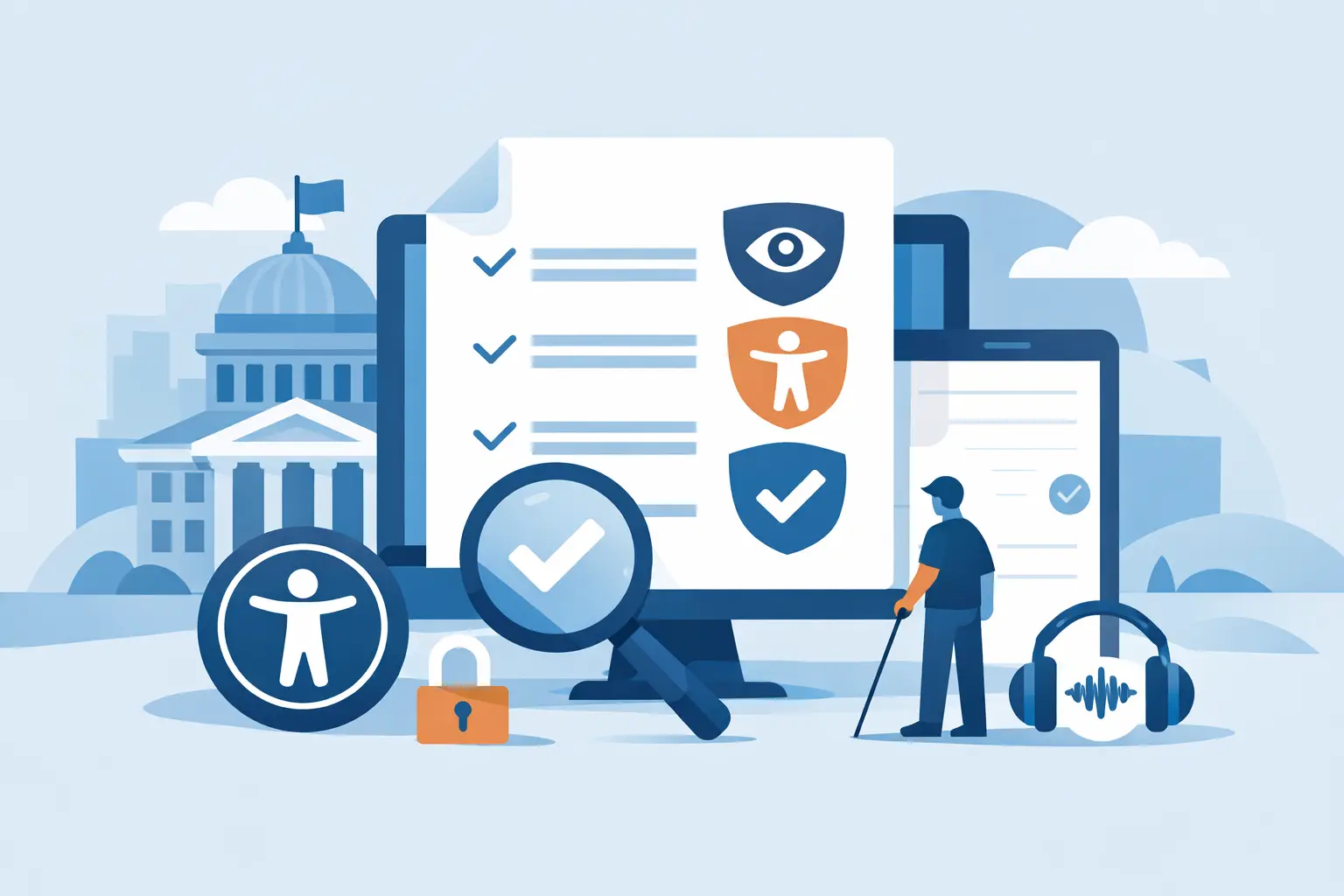
Government PDF Compliance Guide for WCAG and 508
A resident trying to renew a permit, submit a benefits application, or read a public meeting agenda should not have to guess what a PDF says or struggle to complete it with a keyboard. Yet PDFs often become the least accessible part of a government website. This government PDF compliance guide sets out a practical process for finding, fixing, and preventing inaccessible PDF documents within a public-sector publishing workflow.
For federal agencies and many state and local entities, document accessibility is not optional housekeeping. It is part of providing equal access to programs, services, and information. A PDF that looks correct on screen can still fail a screen reader user, a keyboard-only user, or a person who needs sufficient contrast, readable text, and a properly labeled form.
Why Government PDFs Create Compliance Risk
Government websites publish documents at scale: agendas, ordinances, procurement notices, reports, applications, emergency updates, policy manuals, and archived records. Departments often receive these files from multiple authors, consultants, and legacy systems. That creates inconsistent source quality and little control over the final PDF.
A common problem is treating a PDF as a visual artifact rather than structured digital content. A scanned document may contain only an image. A report exported from a desktop publishing program may have no meaningful heading structure. A form may show fields visually but provide no accessible labels, instructions, or keyboard path.
Under the Revised Section 508 standards, federal agencies must make covered information and communication technology accessible. Those standards incorporate WCAG 2.0 Level AA success criteria in key areas. Many government organizations also use WCAG 2.1 AA or WCAG 2.2 AA as their current operational benchmark, especially when their broader web accessibility policy has moved beyond the baseline incorporated by Section 508. The applicable legal requirement depends on the agency, jurisdiction, funding source, and policy. The operational lesson is consistent: PDFs need the same accessibility governance as web pages.
Government PDF Compliance Guide: Start With an Inventory
Do not begin by remediating documents one at a time without knowing what is publicly available. First, create an inventory of PDFs on the website and classify them by purpose, traffic, risk, and ownership.
Prioritize documents that support essential public services or legal processes. An inaccessible employment application, public hearing notice, benefit form, emergency plan, or voting document presents more immediate risk than a low-traffic historical newsletter. High-traffic files, newly published files, and documents tied to deadlines should move to the front of the remediation queue.
The inventory should also identify duplicate files and stale documents. Removing an outdated PDF can be more effective than remediating it. If the information is still needed but does not require fixed page layout, consider publishing it as an accessible HTML page instead. HTML is generally easier to read on mobile devices, easier to update, and easier to maintain within a controlled WordPress workflow.
PDF remains appropriate when layout, printing, signatures, or a formal record requires it. The decision should be intentional, not automatic.
Build Accessibility Into the Source Document
The least expensive PDF to remediate is one created accessibly from the start. Authors should use templates that include logical headings, approved font styles, sufficient color contrast, table conventions, and accessible form controls. They should never use blank spaces, repeated tabs, or visual formatting alone to create structure.
A properly prepared source document makes tagging and export far more reliable. Before export, authors should confirm that headings are actual heading styles, lists use list formatting, table headers are marked as headers, images have meaningful alternative text, and links describe their destination or action.
Avoid using color as the only indicator of status. For example, a grant application form should not identify required fields only with red text. Add clear text such as “Required,” and ensure the instruction is available to assistive technology.
Scanned paper documents require a different path. Optical character recognition can create searchable text, but OCR does not reliably produce an accessible document. The resulting PDF still needs review for reading order, heading hierarchy, table structure, image descriptions, and form behavior. For complex or poor-quality scans, rebuilding the document from an accessible source may take less time and produce a better result.
What an Accessible PDF Must Include
There is no single checkbox that makes a document compliant. Accessibility depends on the document’s structure, content, and user interaction. A meaningful review addresses several connected requirements:
- Searchable, selectable text: Users must be able to access actual text rather than an image of text.
- Document language and title: The primary language and a descriptive document title help assistive technologies present the file correctly.
- Logical tags and reading order: Headings, paragraphs, lists, tables, and other elements must be tagged in an order that reflects how the content should be read.
- Text alternatives: Informative images, charts, and diagrams need descriptions that communicate their purpose. Decorative images should be appropriately identified so they do not create noise.
- Accessible tables: Data tables need correct header cells, logical relationships, and a layout that does not force users to infer meaning from position alone.
- Keyboard-accessible forms: Every field needs a programmatic label, clear instructions, predictable tab order, and error messaging that can be understood without a mouse or visual cues.
- Readable visual presentation: Text must have adequate contrast, cannot depend on color alone, and should remain legible when users zoom the document.
Some requirements need judgment. Alternative text for a simple department logo may be brief. Alternative text for a chart showing changes in emergency shelter capacity may need to communicate the underlying data, trend, and relevant conclusion. If the chart is essential to a public decision, a short label is not enough.
Test Beyond the Accessibility Checker
Automated testing is necessary because it identifies repeatable errors quickly, particularly across large document libraries. It can flag missing titles, potential image issues, untagged content, and other detectable failures. But automated results are not a compliance determination.
A checker cannot reliably decide whether alternative text is meaningful, whether a reading order makes sense, whether a form instruction is clear, or whether a complex table communicates its relationships. Government teams need a manual quality assurance step before publication.
A focused manual test should include opening the document with a screen reader, navigating headings and links, reading through the tag order, operating form fields with the keyboard, and reviewing the document at increased zoom. For high-impact documents, test with realistic user tasks. Can a resident find the eligibility criteria? Can they complete the form? Can they understand an error and correct it?
WP ADA Compliance Check can support the broader website process by scanning WordPress content and PDFs for accessibility issues, while providing remediation guidance in the same environment where teams publish and manage content. PDF scanning should feed a documented review workflow, not replace expert validation of the final user experience.
Control PDFs Before They Reach the Website
The strongest compliance program does not depend on a cleanup project every year. It sets publishing controls that reduce the chance of inaccessible documents entering the public site.
Assign clear responsibility. Content authors should prepare accessible source files. Department reviewers should verify accuracy and plain-language clarity. Web or compliance staff should confirm accessibility requirements before publication. For high-risk documents, establish an escalation path to an accessibility specialist.
A practical pre-publication process can require four actions: authors use an approved template, the PDF passes automated checks, a reviewer completes a manual checklist, and the organization stores the accessible source file with the published version. Keeping the source file matters. If an ordinance, application, or report changes, staff can update and re-export it instead of trying to repair the PDF from scratch.
Agencies should also define an exception process. Some historic records, third-party materials, or legacy documents may be difficult to remediate immediately. An exception should not mean ignoring access. Document the reason, provide an accessible alternative on request, set a remediation timeline when feasible, and avoid using the inaccessible file as the only way to obtain a current service or benefit.
Treat PDFs as Part of Ongoing Accessibility Operations
PDF compliance is not limited to a one-time archive review. New files appear whenever a department uploads a meeting packet, vendor report, application, or public notice. Without recurring scans and publishing standards, remediation debt returns quickly.
Schedule periodic document audits, especially after website migrations, redesigns, or changes to departmental publishing responsibilities. Track recurring error types. If staff repeatedly upload scanned PDFs without text, the answer is training and a better intake process, not repeated one-off repairs.
Public information must be usable at the moment people need it. When government teams make accessible PDF review part of their WordPress publishing operations, they reduce compliance exposure while making public services more dependable for every resident.
Subscribe
Subscribe to receive daily Web Accessibility - Did you know? articles in your inbox.
