
What Issues Does the WP ADA Compliance Plugin Check?
A website can look polished, load quickly, and still create barriers for visitors who use keyboards, screen readers, magnification, or other assistive technology. When teams ask, “what issues does the wp ada compliance plugin check for?” they usually need more than a generic accessibility score. They need to know whether the scan will find the problems buried in WordPress content, theme templates, uploaded documents, navigation, and publishing workflows.
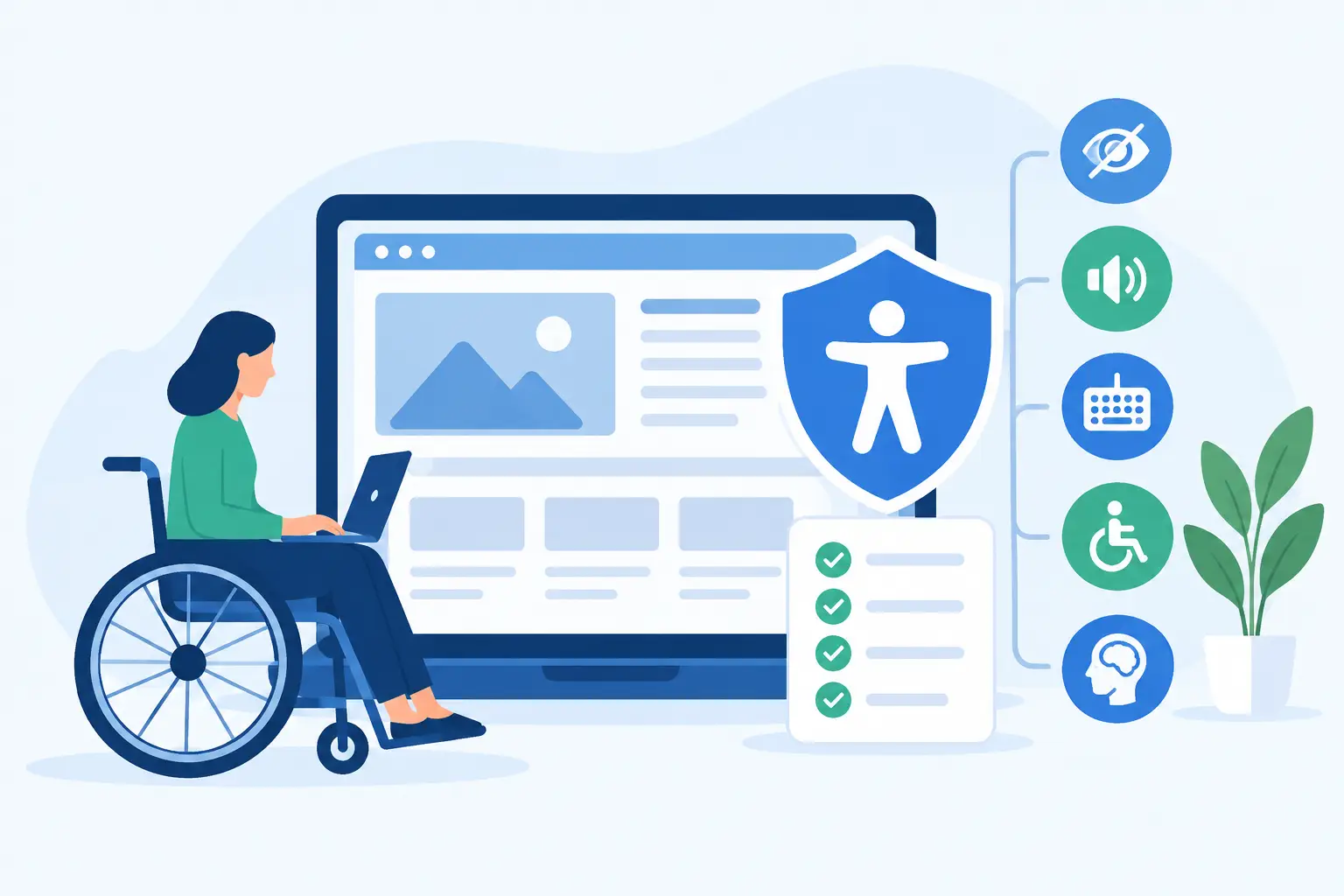
WP ADA Compliance Check evaluates a broad set of accessibility issues against WCAG 2.1, WCAG 2.2, and Section 508 requirements. Its purpose is to identify issues in the places WordPress sites commonly fail, then provide specific guidance so site owners, content teams, and developers can remediate them efficiently.
View the complete list of checks.
What issues does the WP ADA Compliance plugin check for?
The plugin checks for accessibility errors, warnings, and other conditions that may prevent people with disabilities from accessing or operating a website. It scans published pages and posts as well as broader WordPress components, including custom post types, widgets, menus, theme files, media, PDFs, and linked content where applicable.
The exact findings depend on the site, the content being scanned, and the scan settings. A large institutional site may surface recurring template-level errors alongside thousands of content-level issues. A small business site may have fewer findings, but a single inaccessible form, PDF, or navigation menu can still create a material accessibility problem.
Missing or inadequate text alternatives
One of the most common accessibility failures is an image without meaningful alternative text. Screen reader users rely on alt text to understand informative images, while decorative images should be handled in a way that does not add unnecessary noise.
The plugin can identify images with missing alt attributes and other image-related concerns. Remediation requires judgment. A photo of a campus building may need a concise description, while a decorative flourish beside a heading may not need descriptive text at all. Automated scanning identifies the missing or questionable markup, but a person must decide whether the text accurately conveys the image’s purpose.
This review should also include linked images, image buttons, infographics, and graphics containing text. If an image functions as a control, its alternative text needs to communicate the action, not merely describe the visual.
Heading structure and page landmarks
Headings are not just visual formatting. They give screen reader users a way to understand page structure and move quickly between sections. The plugin checks for issues such as missing heading structure, skipped heading levels, and headings that may be empty or improperly used.
A page that jumps from an H1 directly to an H4 may confuse the document outline. Likewise, bold text styled to look like a heading does not provide the semantic structure assistive technologies need. Editors can often correct these findings directly in the WordPress block editor, while developers may need to update theme templates or page builder components.
The scan also helps identify structural concerns involving landmarks and page regions. Proper semantic organization makes it easier for visitors to locate main content, navigation, search, and complementary information without repeatedly tabbing through the full page.
Color contrast and visual readability
Low contrast text is a frequent WCAG failure, especially in branded buttons, promotional banners, footer links, and page builder designs. The plugin checks color contrast conditions that can make text or important controls difficult to distinguish from their background.
Contrast findings are not always limited to body copy. Placeholder text, form instructions, button labels, alert messages, and text placed over background images can all cause problems. A design may technically pass in one state but fail when a visitor hovers over a menu item or encounters an error message.
Correcting contrast often requires coordination between content, design, and development teams. Changing a brand color is not always necessary. In many cases, a darker text treatment, a different button state, or a solid background behind text can resolve the issue while preserving the intended design.
Keyboard access and focus visibility
Many people cannot use a mouse or choose not to use one. They navigate with a keyboard, switch device, voice control, or other input method. For those visitors, every interactive feature must be reachable and usable with the keyboard.
The plugin checks for conditions associated with keyboard accessibility, including focus-related concerns and interactive elements that may not be properly identified. It can flag patterns that deserve technical review in menus, sliders, pop-ups, accordions, tabs, forms, and custom controls.
A scanner can identify many code-level indicators, but keyboard testing remains essential. A control may be present in the markup yet trap keyboard focus, open unexpectedly, or move focus to the wrong location after a modal closes. Treat automated findings as a prioritized audit queue, then validate key user paths manually.
Links, buttons, and form controls without clear names
A link labeled “Click here” provides little meaning when read out of context. An icon-only button without an accessible name can be impossible for a screen reader user to understand. The plugin checks for empty links, ambiguous link text patterns, empty buttons, and related labeling issues.
Forms receive special attention because they often support high-stakes actions: requesting a quote, applying for a program, making a payment, registering for an event, or reporting an issue. The scan can identify missing labels and other form accessibility concerns that make fields difficult to interpret.
A visual placeholder is not a substitute for a persistent field label. Error messages also need to explain what went wrong and how to correct it. For example, “Invalid entry” is less useful than “Enter a 10-digit phone number.”
Tables, lists, and semantic HTML problems
WordPress content frequently includes tables for schedules, pricing, reports, and data summaries. A table that only looks organized visually may not be understandable to assistive technology. The plugin checks for table-related issues, including missing headers and structural patterns that can interfere with interpretation.
It also identifies semantic HTML concerns that occur when content is built with generic containers instead of meaningful elements. Lists presented as manually typed dashes, headings used solely for larger font sizes, and clickable containers built without appropriate semantics can all reduce usability.
These issues matter because compliance is not only about whether code validates. It is about whether visitors can understand relationships between content and operate controls with their chosen technology.
Media, documents, and embedded content
Accessibility obligations extend beyond standard page text. The plugin’s broader scan coverage helps teams identify concerns related to media and documents, including PDFs. For government agencies, schools, healthcare organizations, and businesses that publish forms, policies, reports, or program materials, inaccessible PDFs are often a significant exposure.
A PDF may need a separate remediation process involving document tags, reading order, headings, table structure, alternative text, and form field labels. The plugin can help bring these assets into the compliance workflow, but it cannot turn every legacy document into a fully accessible document without review.
Video and audio content require the same practical scrutiny. Captions, transcripts, audio descriptions, player controls, and embed behavior may need validation depending on the content and how it is used.
Coverage beyond individual posts and pages
Manual review inside the WordPress editor is not enough when accessibility problems are introduced by a theme, a shared header, a plugin, or a custom template. A missing skip link or inaccessible navigation control can affect every page on the site.
That is why full-site scanning matters. WP ADA Compliance Check is designed to identify issues across WordPress environments, including theme files, menus, widgets, custom post types, and other sitewide components. Detailed reporting can point teams toward the relevant code location or editing path rather than leaving them with a vague statement that the site has accessibility issues.
For agencies, this makes it easier to separate global template fixes from client content corrections. For internal web teams, it creates a clearer ownership model: developers address component defects, while editors fix page-level content issues before publication.
Automated corrections and publishing controls
Some error types can be corrected automatically, reducing repetitive remediation work across a large site. Automated correction is useful for clearly defined issues where a safe, predictable adjustment can be made. It is not a substitute for accessibility governance or professional judgment.
The strongest workflow combines automated checks with prevention. Publishing controls can help stop new inaccessible content from entering the site, while remediation guidance helps existing content owners understand what to change. This is especially valuable for organizations with multiple editors, decentralized departments, or frequent document publishing.
A warning should not be treated exactly like a confirmed failure. Some findings can be verified automatically against code and standards. Others require a human reviewer to assess context, intent, and the actual user experience. The right process is to resolve clear errors promptly, investigate warnings, and test critical transactions with a keyboard and screen reader.
Accessibility compliance becomes more manageable when it is built into normal WordPress operations rather than handled only after a complaint, procurement review, or legal demand. A consistent scan-and-remediate process gives teams a practical way to find barriers, assign fixes, and improve every time content changes.
Try WP ADA Compliance Check or View the complete list of checks.
Subscribe
Subscribe to receive daily Web Accessibility - Did you know? articles in your inbox.
